 WhatsApp +44 7367 063273
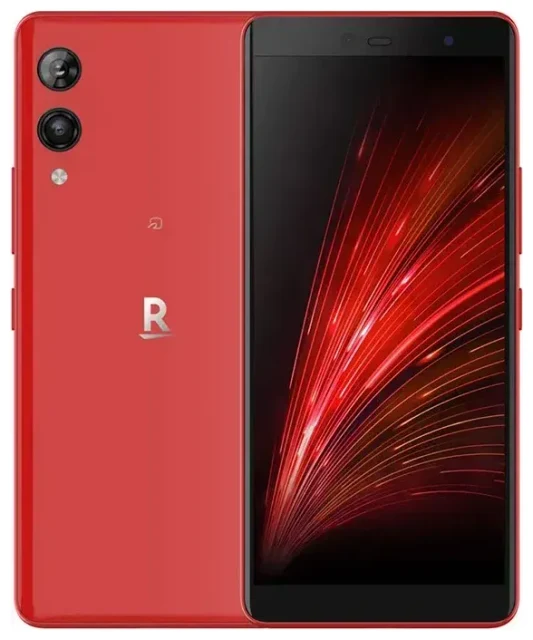
Does the Rakuten Hand support eSIM?
Yes, the Rakuten Hand supports eSIM exclusively. This device was released by Rakuten Mobile in Japan and features no physical SIM card slot—it operates entirely on eSIM technology. The Rakuten Hand eSIM compatibility means you activate your mobile plan digitally, without inserting a physical card.
Rakuten Hand eSIM compatibility
All Rakuten Hand models support eSIM because it's the only way to connect the device to a cellular network. The phone does not support dual SIM functionality in the traditional sense; you can store multiple eSIM profiles on the device, but only one can be active at a time. You'll need to manually switch between profiles in your settings if you want to use different carriers or plans.
Regional availability and carrier support
The Rakuten Hand was manufactured for the Japanese market and designed primarily for use with Rakuten Mobile's network. If you plan to use it outside Japan or with international carriers, confirm that your chosen carrier supports eSIM activation and that the device's frequency bands match your region's network requirements. Not all global carriers will provision eSIM profiles for devices originally sold through another operator.
How to set up an eSIM on the Rakuten Hand
Setting up an eSIM on your Rakuten Hand takes about a minute once you have your QR code or activation details from your carrier. You'll receive this information from your mobile operator or travel eSIM provider after purchasing a plan.
Step-by-step eSIM installation
- Connect your Rakuten Hand to Wi-Fi—you need internet access to download the eSIM profile.
- Open Settings and tap Network & internet.
- Tap Mobile network, then select Advanced.
- Choose Add carrier or Download a SIM instead? (wording may vary by Android version).
- Scan the QR code provided by your carrier using your phone's camera, or tap Enter it manually if you have an activation code.
- Wait 30–60 seconds while the profile downloads and installs.
- Label the eSIM line with a recognizable name like "Travel" or the carrier name for easy identification.
- Turn on Mobile data for the new eSIM profile to start using it.
Managing multiple eSIM profiles
You can store more than one eSIM profile on the Rakuten Hand, but you must manually switch between them. Go to Settings > Network & internet > Mobile network and select which profile you want active. This is useful if you keep a home eSIM and add a travel eSIM—you'll switch to the travel profile when abroad and back to your home profile when you return.
Using a travel eSIM on the Rakuten Hand
Travel eSIMs let you get mobile data in another country without paying roaming fees to your home carrier. Because the Rakuten Hand supports eSIM, you can install a data-only travel eSIM profile before your trip and activate it when you land.
How travel eSIMs work on your device
Purchase a travel eSIM plan for your destination and install the profile while you're still at home with Wi-Fi access. Once you arrive, turn on the travel eSIM profile and enable data roaming for that line. You'll have internet access immediately—no need to find a local shop or swap physical SIM cards. Your original Rakuten Mobile eSIM stays installed but inactive, so you can switch back anytime. Browse eSIM plans for over 200 countries and regions to find coverage that matches your itinerary.
Why install your travel eSIM before you fly
Installing the eSIM profile at home ensures everything works correctly before you board. You'll have time to troubleshoot activation issues, contact support if needed, and label your eSIM lines clearly. When you land, you simply turn on the travel eSIM and enable data—no scrambling for airport Wi-Fi or hunting for a SIM vendor.
Tips & troubleshooting
Most eSIM activations on the Rakuten Hand work smoothly, but a few settings adjustments can prevent common problems.
Enable data roaming for your eSIM line
Travel eSIMs require data roaming to be turned on, even though you're not "roaming" in the traditional expensive sense—you're using a local network through your travel eSIM provider. Go to Settings > Network & internet > Mobile network, select your travel eSIM, and toggle Roaming on. Without this, your data won't connect abroad.
Fix an eSIM that won't activate
If your QR code won't scan, check that your camera lens is clean and the code is displayed at full brightness. You can also tap Enter it manually and type the activation code your provider sent. If the profile downloads but won't activate, restart your Rakuten Hand and confirm you're connected to Wi-Fi during installation. Some carriers require you to activate the eSIM within a specific time window after purchase, so don't wait weeks to install it.
Keep your home eSIM for calls and verification codes
If you rely on two-factor authentication or need to receive calls on your home number, keep that eSIM profile installed but set your travel eSIM as the active data line. You can still receive SMS and calls on the inactive eSIM in many cases—confirm this behavior with Rakuten Mobile. If you're unsure which devices support eSIM for your next phone upgrade, check another device's eSIM compatibility before you buy.
Switching between eSIM profiles
Because the Rakuten Hand doesn't support multiple active eSIMs simultaneously, you'll manually switch in settings whenever you want to change carriers. This takes a few taps and about 10 seconds. If you frequently move between countries or carriers, label each profile clearly so you don't accidentally activate the wrong one and incur unexpected charges.








