 WhatsApp +44 7367 063273
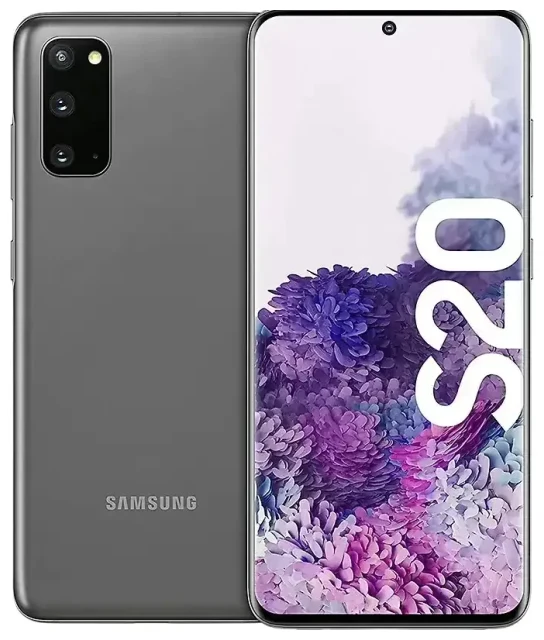
Does the Samsung Galaxy S20 support eSIM?
Samsung Galaxy S20 eSIM compatibility
The answer depends on where your Samsung Galaxy S20 was sold. Some international variants of the Galaxy S20, Galaxy S20+, and Galaxy S20 Ultra support eSIM, but most models sold in the United States do not. Samsung implemented eSIM selectively across different regional versions of the S20 series.
If you purchased your Galaxy S20 in certain European, Asian, or other international markets, your device likely supports eSIM alongside a physical nano-SIM slot, giving you dual SIM capability (one eSIM + one physical SIM active simultaneously). However, Galaxy S20 models distributed through US carriers—including Verizon, AT&T, T-Mobile, and unlocked US versions—typically lack eSIM functionality and only support physical SIM cards.
How to confirm your model supports eSIM
To verify whether your specific Galaxy S20 variant supports eSIM, go to Settings > Connections > SIM card manager. If you see an option to "Add mobile plan" or "Add eSIM," your device is eSIM-capable. If those options don't appear, your model doesn't support eSIM. You can also check your device's model number (Settings > About phone) and cross-reference it with Samsung's regional spec sheets, since eSIM support wasn't universally advertised for this generation.
The Galaxy S20 FE (Fan Edition) follows similar regional patterns—some international versions support eSIM, while US models generally do not. If you're unsure about an obscure regional variant, confirm on Samsung's official specifications for your market before purchasing an eSIM plan.
How to set up an eSIM on the Samsung Galaxy S20
Samsung S20 eSIM setup steps
If your Samsung Galaxy S20 supports eSIM, activation typically takes about 60 seconds. You'll need a QR code from your eSIM provider and a Wi-Fi or mobile data connection.
- Open Settings and tap Connections.
- Tap SIM card manager.
- Select Add mobile plan or Add eSIM.
- Tap Scan QR code and point your camera at the QR code provided by your eSIM carrier.
- Follow the on-screen prompts to download and install the eSIM profile.
- Once installed, label your eSIM line (e.g., "Travel" or "Work") to distinguish it from your physical SIM.
- Toggle on the eSIM line in SIM card manager to activate it.
Manage your dual SIM lines
After setup, you can choose which SIM handles mobile data, calls, and texts. Go to Settings > Connections > SIM card manager, then tap Preferred SIM card to assign roles. Your Samsung Galaxy S20 can keep both lines active, so you'll receive calls and messages on both numbers while routing data through whichever SIM you select.
Using a travel eSIM on the Samsung Galaxy S20
If your Galaxy S20 supports eSIM, it's an efficient way to stay connected abroad without paying international roaming fees from your home carrier. Install a travel eSIM before your flight, and you'll have local data rates the moment you land.
Travel eSIMs work in dozens of countries and you can browse eSIM plans by destination to find prepaid data packages. Purchase a plan online, receive your QR code by email, and follow the setup steps above while still at home. The eSIM stays dormant until you reach your destination and turn on data roaming for that line.
Keep your home number active
You don't need to remove or deactivate your physical SIM. Leave it in the slot, turn off data roaming on your home line to avoid charges, and switch mobile data to your travel eSIM. You'll still receive calls and SMS on your home number for two-factor authentication and important messages, while the eSIM handles all your data.
Tips and troubleshooting
Enable data roaming for your eSIM line
Many users forget this step: even though your eSIM is installed, you must turn on data roaming for that specific line. Go to Settings > Connections > Mobile networks, select your eSIM line, and toggle Data roaming on. This is normal for travel eSIMs—you're "roaming" on the local network your eSIM connects to.
Fix an eSIM that won't activate
If the QR code won't scan, check that your camera lens is clean and the code is well-lit. Alternatively, your eSIM provider should offer manual entry: in the Add eSIM screen, tap "Enter activation code" and type the SM-DP+ address and activation code. If the eSIM installs but shows no signal, restart your Galaxy S20 and confirm the eSIM line is toggled on in SIM card manager.
Need to check another device's eSIM compatibility or run into persistent setup issues? Our eSIM setup help covers common errors and carrier-specific quirks. Remember that even among Samsung eSIM phone lists, the Galaxy S20 appears selectively—it's not a universal feature across all S20 units.
Samsung Galaxy S21 and newer models
If you're considering an upgrade, the Samsung Galaxy S21, S21+, and S21 Ultra expanded eSIM support to more regions, including broader availability in North America. How to activate eSIM on Samsung S21 follows the same Settings > Connections > SIM card manager path, and the S21 series added dual eSIM support (two eSIMs active simultaneously) in some markets—a step up from the S20's single eSIM + physical SIM configuration.








