 WhatsApp +44 7367 063273
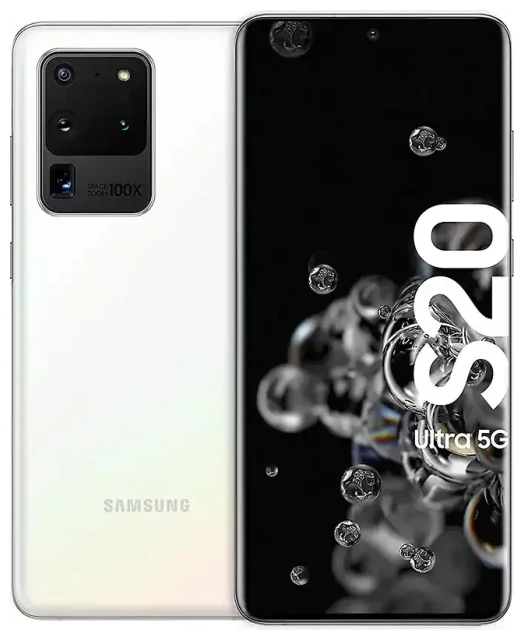
Does the Samsung Galaxy S20 Ultra support eSIM?
Samsung Galaxy S20 Ultra eSIM compatibility
Yes, the Samsung Galaxy S20 Ultra supports eSIM on most models sold globally. Samsung included eSIM functionality in the flagship S20 series, giving you the ability to use a digital SIM alongside the physical nano-SIM slot. However, not every regional variant ships with eSIM enabled. Models sold in the United States, Canada, most of Europe, and Australia typically support eSIM. Some markets—including mainland China, Hong Kong, and certain carrier-locked devices—may have eSIM disabled or removed entirely.
If you purchased your Samsung Galaxy S20 Ultra through a carrier, confirm eSIM support directly with them or check your device settings under Settings > Connections > SIM card manager. If you see an option to "Add mobile plan" or "Add eSIM," your device is eSIM-capable. If that option is missing, your specific model likely does not support eSIM.
Dual SIM: eSIM plus physical SIM
The Samsung Galaxy S20 Ultra operates in dual-SIM mode when you activate an eSIM. You can use the physical nano-SIM slot for one line and the eSIM for a second line simultaneously. This setup is ideal for separating work and personal numbers, or keeping your home number active while using a travel eSIM for data abroad. The Galaxy S20 Ultra does not support dual eSIM—only one eSIM profile can be active at a time, paired with the physical SIM.
How to set up an eSIM on the Samsung Galaxy S20 Ultra
Samsung S20 Ultra eSIM setup steps
Setting up an eSIM on your Samsung Galaxy S20 Ultra takes about a minute once you have your QR code from your carrier or eSIM provider. Make sure you have a stable Wi-Fi connection before you begin.
- Open Settings on your Samsung Galaxy S20 Ultra.
- Tap Connections, then SIM card manager.
- Select Add mobile plan or Add eSIM.
- Choose Scan carrier QR code and point your camera at the QR code provided by your eSIM provider.
- Tap Add when the plan details appear, then wait about 60 seconds for the eSIM to download and activate.
- Label your lines (for example, "Personal" and "Travel") to distinguish between your physical SIM and eSIM.
- Set your preferred line for mobile data, calls, and messages under SIM card manager.
Manual activation if the QR code won't scan
If your camera struggles to read the QR code, tap Enter activation code manually in the add-eSIM screen. Your provider will supply an SM-DP+ address and activation code—copy and paste these exactly as shown. The eSIM will download and activate the same way.
Using a travel eSIM on the Samsung Galaxy S20 Ultra
A travel eSIM is the simplest way to get mobile data when you travel internationally without paying roaming fees from your home carrier. Instead of hunting for a local SIM card at the airport, you can install an eSIM plan before you fly and have data the moment you land. Your Samsung Galaxy S20 Ultra will stay connected to your home number on the physical SIM for calls and texts, while the eSIM handles data.
Purchase a data plan that covers your destination, receive the QR code by email, and follow the setup steps above while you still have Wi-Fi at home. The eSIM profile sits dormant until you arrive and turn on data roaming for that line. You can browse eSIM plans for more than 200 countries and regions, comparing coverage and data allowances to match your trip.
Once you return home, switch your mobile data back to your primary SIM in SIM card manager. The travel eSIM remains installed and can be reused if the plan allows top-ups, or deleted to make room for a different eSIM next time.
Tips and troubleshooting
Turn on data roaming for your eSIM line
Your Samsung Galaxy S20 Ultra treats the eSIM as a second line, so you must enable data roaming for that specific SIM to use it abroad. Go to Settings > Connections > Mobile networks, select your eSIM line, and toggle Data roaming on. Your physical SIM can stay on or off depending on whether you want to receive calls on your home number—just make sure mobile data is assigned to the eSIM in SIM card manager.
Keep your home SIM active for calls and two-factor authentication
Leave your physical SIM installed and turned on so you can receive calls, SMS, and two-factor authentication codes on your regular number. The eSIM will handle data, and incoming messages and calls will still reach you. If you disable the physical SIM entirely, you'll miss important messages.
Fix an eSIM that won't activate
If the eSIM download stalls or shows an error, restart your Samsung Galaxy S20 Ultra and try the scan again. Confirm you're connected to Wi-Fi—cellular data alone sometimes causes activation to fail. If the problem persists, check that your device is carrier-unlocked; locked phones may block eSIM profiles from third-party providers. You can also get eSIM setup help if the QR code repeatedly fails or the plan doesn't appear in SIM card manager.
Some users on Galaxy S20 Ultra eSIM Reddit threads report needing a software update to unlock eSIM functionality—navigate to Settings > Software update and install any pending updates if you don't see the "Add mobile plan" option. If your model still lacks eSIM support after updating, it may be a regional variant without the feature. You can check another device's eSIM compatibility if you're considering an upgrade or alternative phone.








