 WhatsApp +44 7367 063273
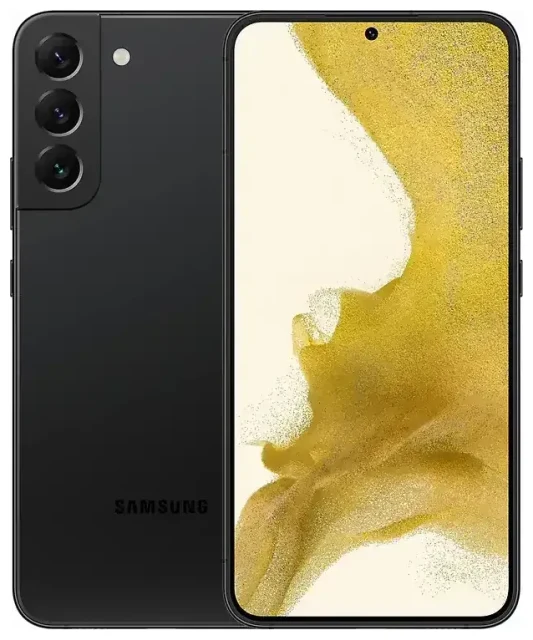
Does the Samsung Galaxy S22 5G support eSIM?
Samsung Galaxy S22 5G eSIM compatibility
Yes, the Samsung Galaxy S22 5G supports eSIM on most models sold globally. The unlocked US variant, carrier-locked versions from major US carriers, and most international models include eSIM functionality. However, some regional variants—particularly certain models sold in China, Hong Kong, and a few other markets—ship with dual physical SIM trays instead of eSIM capability. If you purchased your Samsung Galaxy S22 5G from a non-standard retailer or an unfamiliar region, check the device specifications or test the eSIM menu in Settings to confirm.
Dual SIM capability: eSIM plus physical SIM
The Samsung Galaxy S22 5G supports dual SIM operation by combining one physical nano-SIM card with one eSIM. You can keep your primary number on the physical SIM and add a second line via eSIM, or reverse the setup. The phone does not support dual eSIM profiles active simultaneously; only one eSIM can be enabled at a time alongside the physical SIM. You can store multiple eSIM profiles on the device and switch between them in Settings, but only one eSIM will be active for calls and data at any moment.
How to set up an eSIM on the Samsung Galaxy S22 5G
Step-by-step eSIM activation
Setting up an eSIM on your Samsung Galaxy S22 5G takes about a minute once you have your QR code from your carrier or eSIM provider. Follow these steps to install and activate your eSIM profile:
- Open Settings and tap Connections.
- Tap SIM manager (or SIM card manager on some firmware versions).
- Select Add mobile plan or Add eSIM.
- Tap Scan carrier QR code and point your camera at the QR code provided by your carrier or travel eSIM provider.
- Confirm the plan details and tap Add. The eSIM profile will download and install in roughly 60 seconds.
- Once installed, you'll be prompted to label the line (for example, "Work," "Travel," or "Home"). Choose a name that helps you identify which SIM handles which calls or data.
- Set your preferred SIM for mobile data, calls, and text messages in SIM manager. You can change these preferences anytime.
Alternative activation methods
If you don't have a QR code, some carriers provide an activation code (a long string starting with "LPA:") that you can enter manually. In SIM manager, choose Add mobile plan and select Enter activation code instead of scanning. Your carrier may also offer an app-based installation; download the carrier's app, sign in, and follow the in-app eSIM setup prompts.
Using a travel eSIM on the Samsung Galaxy S22 5G
Stay connected abroad without roaming fees
A travel eSIM is the easiest way to get mobile data when you're overseas. Instead of paying international roaming charges on your home carrier or hunting for a local SIM card at the airport, you can install a travel eSIM on your Samsung Galaxy S22 5G before you leave. You'll land with data already active, ready for maps, messaging, and rideshare apps. Your home number stays on the physical SIM for calls and two-factor authentication texts, while the travel eSIM handles data at local rates.
You can browse eSIM plans for your destination, purchase a data plan that fits your trip length, and receive your QR code by email within minutes. Install the eSIM profile while you're still on Wi-Fi at home, then activate it when you arrive. Many travelers install the eSIM a day or two early to avoid any last-minute connection issues at the airport.
Managing two lines for travel
When you use a travel eSIM alongside your home SIM, configure your Samsung Galaxy S22 5G to route mobile data through the eSIM and leave calls and SMS on your home SIM. In SIM manager, tap Mobile data and select your travel eSIM. This setup prevents expensive roaming data charges while keeping your home number reachable for important calls and verification codes.
Tips and troubleshooting
Enable data roaming for your eSIM line
Even though you're using a local or regional travel eSIM, you still need to turn on data roaming for that line. Go to Settings > Connections > Mobile networks, select your eSIM, and toggle Data roaming on. This is a common source of confusion: the eSIM is "local" to the country you're visiting, but your Samsung Galaxy S22 5G treats it as a secondary SIM and requires roaming to be enabled. Your home SIM can have roaming turned off to avoid accidental charges.
What to do if the QR code won't scan
If your Samsung Galaxy S22 5G won't recognize the QR code, check that the image is clear, well-lit, and fully visible on your second screen or printed page. You can also try entering the activation code manually (look for the "LPA:" string in your eSIM confirmation email) by selecting Enter activation code in SIM manager. If installation fails or the eSIM profile shows as inactive, restart your phone and attempt the installation again. Make sure you have a stable Wi-Fi connection during the download.
Switching between eSIM profiles
You can store multiple eSIM profiles on the Samsung Galaxy S22 5G, but only one can be active at a time alongside your physical SIM. To switch, open SIM manager, tap the eSIM you want to disable, and toggle it off. Then select a different stored eSIM and turn it on. This is useful if you travel frequently to different regions and want to keep several travel eSIMs ready to go. If you need to check another device's eSIM compatibility for a family member or second phone, the process and capabilities will vary by manufacturer and model.
Samsung Galaxy S22 5G eSIM not working
If your eSIM won't activate, confirm that your device is running the latest software update (go to Settings > Software update > Download and install). Some early firmware versions had eSIM bugs that Samsung patched. Also verify that your phone is carrier-unlocked; locked devices may block eSIM profiles from other carriers. If the eSIM installed but you have no signal, check that the correct APN settings are configured under Mobile networks > Access Point Names. Most travel eSIM providers configure APN automatically, but a manual check can resolve connectivity issues. For additional help, visit our eSIM setup help page.








