 WhatsApp +44 7367 063273
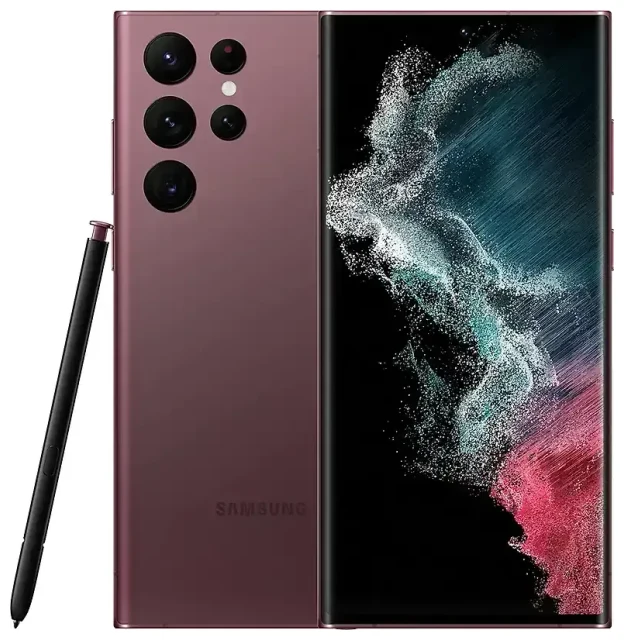
Does the Samsung Galaxy S22 Ultra 5g support eSIM?
Samsung Galaxy S22 Ultra 5g eSIM compatibility
Yes, the Samsung Galaxy S22 Ultra 5g supports eSIM. All global models—whether purchased in the United States, Europe, Asia, or other regions—include eSIM functionality built into the device. Samsung equipped the S22 Ultra 5g with both a physical nano-SIM slot and eSIM capability, making it a versatile choice for travelers and anyone juggling multiple phone numbers.
Dual SIM: eSIM and physical SIM together
The Samsung Galaxy S22 Ultra 5g runs dual SIM by pairing one physical nano-SIM with one active eSIM. You can store multiple eSIM profiles on the device, but only one eSIM can be active at any given time alongside your physical card. This setup lets you keep your home number in the SIM tray while activating a local or travel eSIM for data when you're abroad. Note that the S22 Ultra 5g does not support dual eSIM mode—you'll always need the physical card in the slot if you want two active lines.
How to set up an eSIM on the Samsung Galaxy S22 Ultra 5g
Set up an eSIM in Settings
Setting up an eSIM on your Samsung Galaxy S22 Ultra 5g takes about sixty seconds once you have your QR code. Your eSIM provider will email or display a QR code after purchase; keep that handy before you start.
- Open Settings and tap Connections.
- Tap SIM manager (or SIM card manager on some firmware versions).
- Select Add mobile plan or Add eSIM.
- Tap Scan carrier QR code and point your camera at the QR code on your screen or printout. Alternatively, if your provider supports it, tap Enter activation code manually and paste the SM-DP+ address and activation code.
- The phone will download the eSIM profile. This usually completes in under a minute; you'll see a confirmation once the profile installs.
- Label the new line with a recognizable name—"Travel," "Work," or the country you're visiting—so you can easily identify it later.
- Choose which SIM to use for mobile data, calls, and messages in SIM manager. You can switch data between your physical SIM and eSIM at any time.
Activate your eSIM with a QR code
Most providers deliver your eSIM as a QR code. Make sure you have a stable Wi-Fi connection during installation; the Galaxy S22 Ultra 5g will pull the profile from the carrier's server. If you're setting up a travel eSIM before departure, install it at home over Wi-Fi, then enable it and turn on data roaming once you land.
Using a travel eSIM on the Samsung Galaxy S22 Ultra 5g
A travel eSIM transforms the way you stay connected abroad. Instead of hunting for a local SIM card at the airport or facing steep roaming charges from your home carrier, you can install a data-only eSIM before you fly and activate it the moment you arrive. Your Samsung Galaxy S22 Ultra 5g will use the travel eSIM for internet access—maps, messaging apps, ride-shares—while your physical SIM stays active for calls and texts on your regular number.
Install your travel eSIM a day or two before departure. Open the QR code email on a second device or print it, then follow the setup steps above. Once installed, leave the eSIM toggled off until you reach your destination. When you land, turn on the travel eSIM line in SIM manager, set it as your mobile data source, and enable data roaming for that line only. You'll have internet access without swapping physical cards or unlocking your phone. Browse eSIM plans to find prepaid data packages for your next trip.
Tips and troubleshooting
Turn on data roaming for the eSIM line
A common stumbling block: your travel eSIM won't connect to the internet even though it's active. Head to Settings › Connections › Mobile networks, select your eSIM line, and toggle Data roaming on. The Galaxy S22 Ultra 5g treats any eSIM network outside its registered home as roaming, so this switch must be enabled for data to flow. Your physical SIM can stay on or off for roaming depending on whether you want to allow calls and texts on that line.
Fix an eSIM that won't activate
If the QR code won't scan, check that your camera lens is clean and that the code is displayed at full brightness without glare. You can also tap Enter activation code manually in the add-eSIM screen and paste the SM-DP+ address and activation code your provider sent. Restart the phone after installation if the new profile doesn't appear in SIM manager. If you continue to see errors—common on Reddit threads about "Galaxy s22 ultra 5g esim not working" or "Samsung s22 ultra esim not working"—confirm with your provider that the QR code hasn't expired and that the profile wasn't already installed on another device. Each eSIM QR code typically works only once. For persistent issues, eSIM setup help can walk you through manual activation and carrier-specific quirks.
Keep your home SIM for calls and two-factor authentication
Leave your physical SIM in the tray while traveling. Set your home line as the default for voice calls and SMS, and route mobile data through the travel eSIM. This way, you'll receive bank codes and verification texts on your usual number while enjoying affordable local data rates. You can toggle which SIM handles each function in SIM manager at any time.
If you're curious whether another device you own works with eSIM, you can check another device's eSIM compatibility on our full list.








