 WhatsApp +44 7367 063273
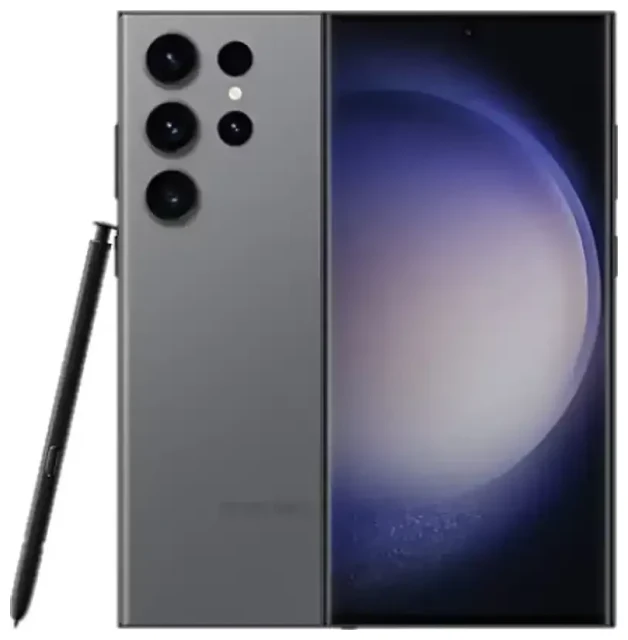
Does the Samsung Galaxy S23 Ultra support eSIM?
Samsung Galaxy S23 Ultra eSIM compatibility
Yes, the Samsung Galaxy S23 Ultra supports eSIM technology. All variants of the Samsung Galaxy S23 Ultra sold globally—including models in North America, Europe, Asia, and other regions—come with eSIM capability built in. This applies to both carrier-locked and unlocked versions of the device.
The Samsung Galaxy S23 Ultra offers true dual SIM functionality: you can use one physical nano-SIM card in the SIM tray alongside one active eSIM profile. The device can store multiple eSIM profiles (up to 10), but only one eSIM can be active at a time in addition to the physical SIM. This means you can maintain two active numbers simultaneously—ideal if you want to keep your home number while adding a local or travel data plan.
Samsung Galaxy S23 Ultra dual SIM capabilities
Unlike some regions where Samsung offers a dual physical SIM tray, the Galaxy S23 Ultra across most markets features a single nano-SIM slot. The dual SIM functionality is achieved through the combination of that physical slot and eSIM support. You cannot run two eSIMs simultaneously on this device; it's always one physical SIM plus one eSIM, or a single physical SIM, or a single eSIM on its own.
How to set up an eSIM on the Samsung Galaxy S23 Ultra
Samsung Galaxy S23 Ultra eSIM setup steps
Setting up an eSIM on your Samsung Galaxy S23 Ultra takes about 60 seconds once you have your QR code from your carrier or travel eSIM provider. Make sure you're connected to Wi-Fi before you begin, as the device needs to download your eSIM profile.
- Open Settings on your Samsung Galaxy S23 Ultra.
- Tap Connections, then tap SIM manager (or SIM card manager depending on your software version).
- Tap Add eSIM or Add mobile plan.
- Tap Scan QR code and point your camera at the QR code provided by your carrier or eSIM provider.
- Tap Add to confirm and wait while the eSIM profile downloads and installs.
- Once installed, give your eSIM line a recognizable label (like "Travel" or "Work") so you can easily identify it in your SIM manager.
- Choose which SIM to use for mobile data, calls, and messages in the SIM manager settings.
Alternative activation methods
If you don't have a QR code, some carriers allow you to activate eSIM on Samsung phones through their dedicated app or by entering an activation code manually. Check with your provider for their specific process. The Samsung Galaxy S23 Ultra also supports eSIM profile transfers from another Samsung device if you're upgrading.
Using a travel eSIM on the Samsung Galaxy S23 Ultra
A travel eSIM is the simplest way to get mobile data abroad on your Samsung Galaxy S23 Ultra without paying expensive roaming fees from your home carrier. Instead of hunting for a local SIM card when you land, you install a data-only eSIM before you fly and arrive with connectivity already working.
Your home physical SIM stays in place, so you can still receive calls and text messages (including authentication codes) on your regular number. The travel eSIM handles all your data—maps, ride-sharing, messaging apps, email—using a local or regional data plan that typically costs a fraction of roaming charges.
Purchase a travel eSIM that covers your destination, install the profile while you're still at home on Wi-Fi, and switch your mobile data setting to the travel eSIM line once you arrive. You can browse eSIM plans by destination to find the right coverage and data allowance for your trip. Most plans activate automatically when you land, though some require you to manually turn them on in your SIM manager.
Tips & troubleshooting
Enable data roaming for your eSIM line
This trips up many users: after installing a travel eSIM, you must turn on data roaming specifically for that eSIM line. Go to Settings > Connections > SIM manager, select your eSIM, then enable Data roaming. Despite the name, you're not being charged roaming fees—the eSIM is a local or regional plan. Data roaming just allows the eSIM to connect to networks in other countries.
Managing two active SIMs
In SIM manager, you control which line handles mobile data and which handles calls and SMS. A common setup for travel: set your eSIM as the default for mobile data and leave your physical SIM as default for calls and messages. This way, you browse and use apps on the affordable travel eSIM while remaining reachable on your home number for important calls or two-factor authentication texts.
QR code won't scan or eSIM won't activate
If the camera won't recognize your QR code, check that it's displayed at full brightness and there's no glare. You can also try entering the activation code manually: tap Enter activation code instead of scanning, and type in the SM-DP+ address and activation code provided by your carrier. If the eSIM profile downloads but won't activate, confirm that the device isn't carrier-locked—some locked phones restrict eSIM to the original carrier. You can get eSIM setup help for more detailed troubleshooting. If you need to verify another device's support, you can check another device's eSIM compatibility in our database.
Remove or switch eSIM profiles
When you're done with a travel eSIM or want to replace it, go to SIM manager, tap the eSIM you want to remove, and choose Remove or Delete eSIM. Remember, the Samsung Galaxy S23 Ultra can store up to 10 eSIM profiles but only use one at a time alongside the physical SIM, so you can keep several installed and switch between them as needed.








