 WhatsApp +44 7367 063273
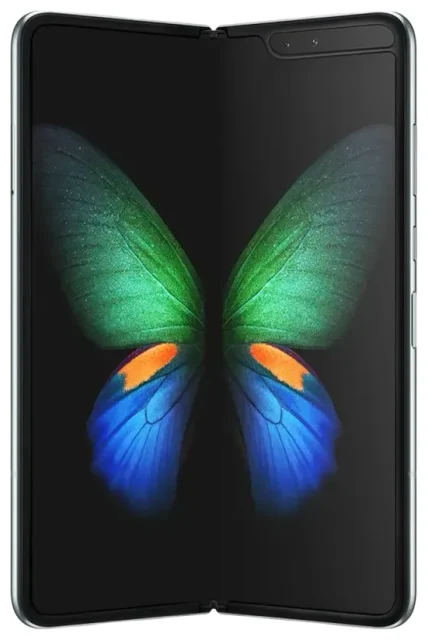
Does the Samsung Galaxy Z Fold support eSIM?
Yes, the Samsung Galaxy Z Fold supports eSIM, but compatibility depends on which generation and regional variant you own. The Galaxy Z Fold 3, Fold 4, Fold 5, Fold 6, and Fold 7 all include eSIM functionality in most markets. However, Samsung releases different versions for different regions—some with eSIM enabled, others without—so you need to verify your specific model.
Samsung Galaxy Z Fold eSIM compatibility by model
The original Galaxy Z Fold (2019) and Galaxy Z Fold 2 (2020) do not support eSIM. These early foldable models rely exclusively on physical nano-SIM cards for connectivity.
Starting with the Galaxy Z Fold 3 (2021), Samsung introduced eSIM capability on many—but not all—variants. US carrier models (AT&T, T-Mobile, Verizon) and unlocked US versions typically support eSIM. European, Middle Eastern, and some Asian variants also include eSIM, but models sold in China, Hong Kong, and certain other markets may ship with dual physical SIM trays instead of eSIM support.
The Galaxy Z Fold 4, Fold 5, Fold 6, and Fold 7 continue this pattern: most international and US versions support eSIM, while specific regional variants do not. If you're uncertain about your device, check Settings > Connections > SIM manager. If you see an "Add eSIM" or "Add mobile plan" option, your phone supports it. You can also confirm on Samsung's official spec sheet for your model number.
Dual SIM with eSIM and physical SIM
eSIM-capable Galaxy Z Fold models support dual SIM: one physical nano-SIM card plus one eSIM profile active simultaneously. You cannot run two eSIMs at the same time on these devices—it's always one physical and one eSIM. This setup lets you keep your home number on the physical SIM while using a travel eSIM for data abroad, or maintain separate work and personal lines.
How to set up an eSIM on the Samsung Galaxy Z Fold
Setting up an eSIM on your Galaxy Z Fold takes about 60 seconds once you have your QR code from your eSIM provider. You'll need a Wi-Fi connection or mobile data to download the eSIM profile.
Step-by-step eSIM installation on Samsung Galaxy Z Fold
- Open Settings and tap Connections.
- Tap SIM manager (or SIM card manager on some versions).
- Tap Add eSIM or Add mobile plan.
- Choose Scan QR code and point your camera at the QR code provided by your eSIM carrier.
- Tap Add to confirm and wait while the profile downloads (usually 10–30 seconds).
- Once installed, give the eSIM line a label—"Travel Data" or "Work," for example—so you can tell it apart from your physical SIM.
- Toggle the eSIM line on, then go to Mobile data and select which SIM to use for data.
If your eSIM provider offers an activation code instead of a QR code, tap Enter activation code manually in step 4 and type it in. Some carriers also let you download eSIM profiles directly from their app.
Managing multiple SIM lines
After activation, head back to SIM manager to choose which line handles calls, texts, and mobile data. You can set one SIM for data and another for calls, or switch your data line on the fly—useful when traveling.
Using a travel eSIM on the Samsung Galaxy Z Fold
A travel eSIM is the simplest way to get mobile data abroad without paying roaming fees or hunting for a local SIM card. You buy a data plan for your destination, install the eSIM profile on your Galaxy Z Fold before you leave, and activate it when you land. Your phone connects to a local network immediately, and you keep your home SIM active for calls and text messages.
Why a travel eSIM makes sense for the Galaxy Z Fold
Because your Galaxy Z Fold supports dual SIM, you don't need to swap anything out. Install the travel eSIM as your second line, switch mobile data to that line in SIM manager, and you're online. Your primary number stays reachable for two-factor authentication codes and calls from home.
Install the eSIM profile while you still have Wi-Fi—at home or in the airport lounge. Most travel eSIM plans activate automatically when your phone detects the destination network, though some require you to toggle the line on manually. You can browse eSIM plans by country or region to compare data allowances and coverage before you travel.
Tips & troubleshooting
Most eSIM activations on the Galaxy Z Fold are quick, but a few settings and common issues trip people up.
Turn on data roaming for your eSIM line
Even though you're using a local eSIM, Android still treats it as a roaming connection. Go to Settings > Connections > Mobile networks, select your eSIM line, and toggle Data roaming on. Without this, your eSIM won't connect to the network.
Keep your home SIM active for calls and two-factor codes
Leave your physical SIM enabled so you can receive calls and SMS verification codes. Just make sure mobile data is assigned to the eSIM line in SIM manager, so you don't rack up roaming charges on your home carrier.
What to do if the QR code won't scan
If your camera struggles with the QR code, increase your screen brightness (if scanning from another device) or try printing the code. You can also tap Enter activation code manually and type the code shown beneath the QR. Check that you're connected to Wi-Fi or mobile data—the Galaxy Z Fold needs internet access to download the eSIM profile.
If the eSIM installs but won't connect, restart your phone, confirm data roaming is on for that line, and check that the plan is active with your eSIM provider. For persistent issues, eSIM setup help can walk you through carrier-specific fixes.
Check compatibility for older or regional models
If you own a Galaxy Z Fold or Z Fold 2, these models do not support eSIM—you'll need a physical travel SIM card or consider upgrading to a newer Fold generation. If you bought your Fold 3 or later in a market like China or Hong Kong, double-check in SIM manager for the "Add eSIM" option; some variants ship without it. You can also check another device's eSIM compatibility if you're comparing phones.








