 WhatsApp +44 7367 063273
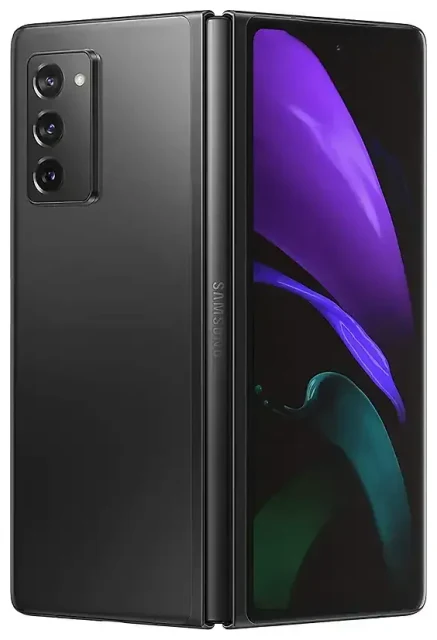
Does the Samsung Galaxy Z Fold 2 support eSIM?
Samsung Galaxy Z Fold 2 eSIM compatibility
The answer depends on which Samsung Galaxy Z Fold 2 variant you own. Some models of the Galaxy Z Fold 2 support eSIM, but not all. eSIM capability varies by region and carrier—certain versions sold in markets like the United States, United Kingdom, and other regions include eSIM functionality, while others ship with dual physical nano-SIM slots instead.
To determine whether your specific Samsung Galaxy Z Fold 2 has eSIM support, check your device's original packaging or the manufacturer's specification sheet for your exact model number (such as SM-F916B, SM-F916U, or SM-F916N). You can also navigate to Settings > Connections > SIM card manager—if you see an option to "Add mobile plan" or "Add eSIM," your device supports it.
Dual SIM capability on the Galaxy Z Fold 2
eSIM-capable Galaxy Z Fold 2 models support dual SIM: one physical nano-SIM card plus one eSIM profile active at the same time. This lets you use two phone numbers or data plans simultaneously—perfect for separating work and personal lines, or keeping your home number active while using a travel eSIM for data abroad. Models without eSIM typically offer dual physical SIM slots instead.
If you are uncertain whether your Galaxy Z Fold 2 variant includes eSIM, contact your carrier or check Samsung's official specification page for your region before purchasing an eSIM plan.
How to set up an eSIM on the Samsung Galaxy Z Fold 2
Set up an eSIM in Settings
If your Samsung Galaxy Z Fold 2 supports eSIM, activating a new profile takes about sixty seconds. You'll need a QR code from your eSIM provider (sent by email or displayed in your account dashboard) and a Wi-Fi or mobile data connection to complete the download.
- Open Settings and tap Connections.
- Tap SIM card manager.
- Select Add mobile plan or Add eSIM.
- Tap Scan carrier QR code and point your camera at the QR code provided by your eSIM carrier.
- Confirm the plan details, then tap Add. The eSIM profile will download and install automatically.
- Once installed, give the new line a label (like "Travel" or "Work") so you can distinguish it from your primary SIM.
- Go back to SIM card manager and choose which line to use for mobile data, calls, and text messages.
Labelling and managing your SIM lines
After activation, you can toggle between your physical SIM and eSIM for data in SIM card manager. Tap the eSIM profile to turn it on or off, adjust roaming settings, or remove the profile when you no longer need it. You can store multiple eSIM profiles on the Galaxy Z Fold 2, but only one eSIM and one physical SIM can be active at the same time.
Using a travel eSIM on the Samsung Galaxy Z Fold 2
Get data abroad without roaming fees
A travel eSIM is the easiest way to stay connected when you travel internationally without paying roaming charges from your home carrier. You buy a data plan for your destination, install the eSIM profile on your Galaxy Z Fold 2, and switch to it for mobile data as soon as you land. Your home SIM stays in the device so you can still receive calls and text messages.
Install your travel eSIM before you leave home—you'll need an internet connection to download the profile, and airport Wi-Fi can be slow or unreliable. Once the eSIM is installed, it will activate automatically when you arrive in your destination country and turn on data roaming for that line. Browse hundreds of prepaid data plans for over 200 countries and regions at browse eSIM plans.
Keep your home number active
With dual SIM, your primary number remains reachable for calls and two-factor authentication codes while the travel eSIM handles all your data. You control which line is used for mobile data in SIM card manager, so you can switch back to your home carrier anytime or turn off the eSIM after your trip.
Tips & troubleshooting
Turn on data roaming for your eSIM line
Your Galaxy Z Fold 2 treats the eSIM as a separate line, so you must enable data roaming specifically for the eSIM profile—even if roaming is off for your primary SIM. Go to Settings > Connections > Mobile networks, select your eSIM line, and toggle Data roaming on. Without this step, your travel eSIM won't connect to local networks abroad.
Keep your home SIM active for calls and texts
Set your physical SIM as the default for voice calls and SMS in SIM card manager, and choose the eSIM for mobile data only. This way, you'll receive calls and verification codes on your regular number while the eSIM handles internet, maps, and messaging apps. Check your home carrier's roaming rates for calls if you plan to make voice calls while abroad.
Fix an eSIM that won't activate
If the QR code won't scan, check that your camera lens is clean and the QR code is displayed clearly on another screen or printed without glare. You can also enter the activation code manually: tap Enter activation code instead of scanning, then type the SM-DP+ address and activation code provided by your carrier. Restart your Galaxy Z Fold 2 after installation if the eSIM doesn't appear in SIM card manager, and make sure your device software is up to date in Settings > Software update.
For persistent issues, confirm your Galaxy Z Fold 2 model actually supports eSIM and that your carrier has sent the correct QR code. If you need more help, visit eSIM setup help or contact your eSIM provider directly. You can also check another device's eSIM compatibility if you're considering a different phone.








