 WhatsApp +44 7367 063273
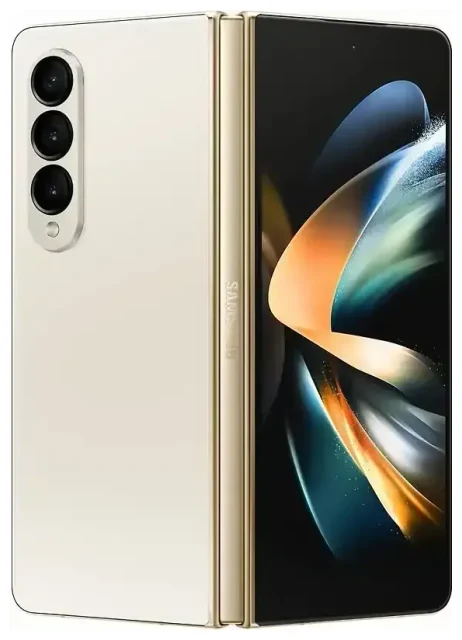
Does the Samsung Galaxy Z Fold 4 support eSIM?
Yes, the Samsung Galaxy Z Fold 4 supports eSIM. Most models sold globally include eSIM functionality, allowing you to activate a cellular plan digitally without a physical SIM card. This applies to units purchased in North America, Europe, Asia-Pacific, and other major markets.
Samsung Galaxy Z Fold 4 eSIM compatibility by region
The Samsung Galaxy Z Fold 4 eSIM capability is available on nearly all variants, but you should verify with your carrier that they support eSIM activation. A small number of carrier-locked models in certain regions may have restricted eSIM features, so check your device's specifications in Settings > About phone > SIM card status to confirm eSIM is listed.
Dual SIM: eSIM plus physical SIM card
The Galaxy Z Fold 4 supports dual SIM operation—one physical nano-SIM and one eSIM active simultaneously. You cannot use two eSIMs at the same time on this device; it's limited to one eSIM profile active alongside the physical SIM slot. This dual-SIM setup lets you keep your primary number on the physical card while adding a secondary line or travel data plan via eSIM.
How to set up an eSIM on the Samsung Galaxy Z Fold 4
Setting up an eSIM on your Galaxy Z Fold 4 takes about a minute once you have your QR code or activation details from your carrier or eSIM provider. Make sure you're connected to Wi-Fi before you begin, and have your QR code ready—most providers email it or display it in their app.
Samsung Galaxy Z Fold 4 eSIM setup steps
- Open Settings and tap Connections.
- Tap SIM manager (or SIM card manager depending on your software version).
- Select Add mobile plan or Add eSIM.
- Tap Scan QR code and point your camera at the QR code provided by your carrier or eSIM provider.
- Follow the on-screen prompts to download the eSIM profile—this usually takes 30 to 60 seconds.
- Once installed, label the new line (for example, "Travel" or "Work") so you can identify it easily.
- Choose which SIM to use for mobile data, calls, and messages in the SIM manager settings.
Alternative activation methods
If you receive an activation code instead of a QR code, tap Enter activation code in step 4 and type in the code manually. Some carriers also support app-based eSIM installation, where you download their app and activate directly without scanning.
Using a travel eSIM on the Samsung Galaxy Z Fold 4
Your Galaxy Z Fold 4 makes international travel simpler. Instead of paying roaming fees or hunting for a local SIM card at the airport, you can install a travel eSIM before your flight and have data ready the moment you land. Travel eSIM plans offer prepaid data in dozens of countries, often at a fraction of roaming costs.
Install your travel eSIM before departure
Purchase and install your travel eSIM while you're still at home on Wi-Fi. The eSIM profile stays dormant until you arrive at your destination and turn it on. You can browse eSIM plans covering single countries or regional packages that work across multiple destinations. Once installed, leave your home SIM in the physical slot for calls and texts, and switch mobile data to the travel eSIM when you land.
Galaxy Z Fold 4 eSIM setup for free or paid plans
Some eSIM providers offer small free data allowances so you can test the service, though most travel plans are prepaid. The Samsung Fold 4 eSIM setup process is identical whether you're activating a free trial or a full data package—just scan the QR code in SIM manager. Keep your travel eSIM installed for future trips; you can top it up or switch to a different regional plan as needed.
Tips and troubleshooting
Most eSIM activations on the Galaxy Z Fold 4 work smoothly, but a few settings adjustments ensure the best experience, especially when traveling or juggling two lines.
Enable data roaming for your eSIM line
Even though your travel eSIM is a local data plan, Android still treats it as "roaming" because it's not your default carrier. Go to Settings > Connections > Mobile networks, select your eSIM, and toggle Data roaming on. Without this, your eSIM won't connect to mobile data abroad. Your home physical SIM can stay in airplane mode or have roaming turned off to avoid surprise charges.
Keep your home SIM active for calls and two-factor authentication
Leave your primary SIM in the physical slot and set it for calls and SMS in SIM manager. This way, you'll still receive verification codes and phone calls on your usual number while the eSIM handles data. If you need to check another device's eSIM compatibility for a family member or second phone, the process is similar across Samsung's recent foldable lineup.
What to do if the QR code won't scan
If your camera can't read the QR code, try increasing screen brightness if you're scanning from another device, or request the activation code from your provider and enter it manually. Ensure your Galaxy Z Fold 4 software is up to date—go to Settings > Software update—since older builds occasionally have scanning bugs. If activation fails repeatedly, restart your phone and try again on a stable Wi-Fi connection. For persistent issues, contact eSIM setup help from your provider.








