 WhatsApp +44 7367 063273
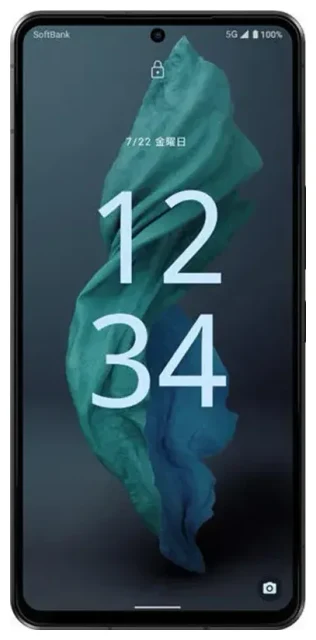
Does the Sharp Aquos R7 support eSIM?
Sharp Aquos R7 eSIM compatibility
Yes, the Sharp Aquos R7 supports eSIM, but only in the Japanese domestic model released through carriers like SoftBank and NTT Docomo. This flagship device was designed primarily for the Japanese market and features eSIM capability alongside a physical nano-SIM slot.
If you purchased your Sharp Aquos R7 outside Japan or through an international reseller, verify eSIM support in your device's specifications before attempting to install an eSIM profile. The safest way to confirm is to check Settings > Network & internet > SIMs to see if an "Add eSIM" or "Download a SIM instead?" option appears.
Dual SIM configuration on the Aquos R7
The Sharp Aquos R7 offers dual SIM functionality: one physical nano-SIM slot plus eSIM support. You can use both simultaneously, making it convenient to keep your home number active for calls and texts while using a travel eSIM for data. You cannot use two eSIM profiles at once—the device supports one active eSIM and one physical SIM concurrently.
How to set up an eSIM on the Sharp Aquos R7
Installing your eSIM profile
Setting up a Sharp Aquos R7 eSIM takes about 60 seconds once you have your QR code from your eSIM provider. Make sure you're connected to Wi-Fi before you begin, as the device needs internet access to download the eSIM profile.
- Open Settings and tap Network & internet.
- Tap SIMs, then select Add eSIM or Download a SIM instead?
- Tap Next when prompted to scan a QR code.
- Point your camera at the QR code provided by your eSIM carrier and wait for it to scan automatically.
- Tap Download to install the eSIM profile (this takes 30–60 seconds).
- Once installed, label your new line (e.g., "Travel Data" or "Japan") to distinguish it from your physical SIM.
- Choose which SIM to use for mobile data, calls, and SMS in the SIM settings.
Set up an eSIM in Settings
After installation, go back to Settings > Network & internet > SIMs to manage your lines. You'll see both your physical SIM and the new eSIM listed. Tap each one to configure preferred usage—specify which line handles mobile data, which one you use for calls, and whether to enable or disable each SIM independently.
Using a travel eSIM on the Sharp Aquos R7
Get data abroad without roaming charges
A travel eSIM is the easiest way to stay connected internationally on your Sharp Aquos R7. Instead of paying expensive roaming fees or hunting for a local SIM card at the airport, you can install a data-only eSIM before you leave home. Your eSIM activates when you land, giving you immediate access to local networks at local rates.
Install your travel eSIM a day or two before departure while you still have reliable Wi-Fi. Most eSIM plans activate either when you connect to a network in your destination country or on a specific start date you choose during purchase. You can browse eSIM plans covering over 200 countries and regions, with options ranging from single-country to global multi-region packages.
Keep your home SIM active
Because the Sharp Aquos R7 supports dual SIM operation, you can leave your primary physical SIM in place for incoming calls and two-factor authentication codes while using the eSIM exclusively for data. Configure your data preference in Settings to route all internet traffic through the travel eSIM, and keep your home line available for voice and SMS.
Tips & troubleshooting
Turn on data roaming for your eSIM line
Even though you're using a local or regional eSIM, you must enable data roaming for that specific line. Go to Settings > Network & internet > SIMs, select your eSIM, and toggle Roaming on. This is not the same as international roaming on your home carrier—it simply allows the eSIM to connect to its designated networks.
Fix an eSIM that won't activate
If your QR code won't scan, check that your camera lens is clean and you have adequate lighting. Alternatively, look for a manual entry option (usually labeled "Enter activation code" or "Enter details manually") beneath the QR scanner. You'll need the SM-DP+ address and activation code from your eSIM provider.
If the eSIM installed but shows no service, restart your Sharp Aquos R7 and wait 2–3 minutes for the profile to register on the network. Confirm you've enabled data roaming for the eSIM line and that mobile data is assigned to the correct SIM in your settings. If you continue to experience issues, eSIM setup help is available, or contact your eSIM provider directly.
Check compatibility for other devices
Not every Sharp smartphone supports eSIM. The earlier Aquos R6, for example, does not include eSIM capability in most variants. If you're considering a different device or want to confirm support for a tablet or secondary phone, you can check another device's eSIM compatibility before purchasing an eSIM plan.








