 WhatsApp +44 7367 063273
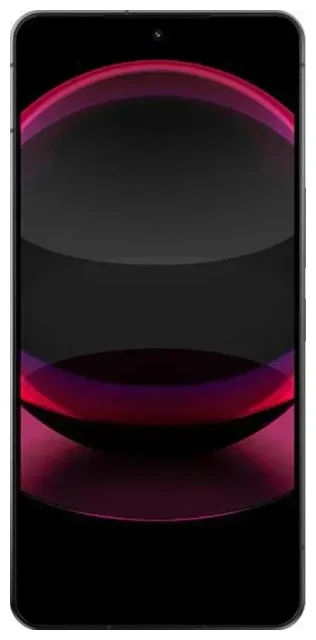
Does the Sharp Aquos R8 Pro support eSIM?
Yes, the Sharp Aquos R8 Pro supports eSIM, but with important limitations. eSIM functionality is available on the Japan domestic model (SH-51D) released through NTT Docomo. This flagship Sharp device offers dual SIM capability using one physical nano-SIM slot plus eSIM support, allowing you to run two phone numbers or data plans simultaneously.
Sharp Aquos R8 Pro eSIM compatibility by region
The Sharp Aquos R8 Pro was designed primarily for the Japanese market. If you purchased your device from a Japanese carrier like Docomo, it should include eSIM support. However, Sharp smartphones sold in other markets or through grey-market importers may have different specifications. The device must be carrier-unlocked to use third-party eSIM profiles, including travel eSIMs from international providers.
Dual SIM configuration on the Sharp Aquos R8 Pro
You can use one physical SIM card and one eSIM profile at the same time on this device. This setup works well for keeping your primary number active on the physical SIM while adding a travel eSIM for data when you're abroad. The Sharp Aquos R8 Pro does not support dual eSIM mode—you cannot run two eSIM profiles simultaneously without a physical SIM.
How to set up an eSIM on the Sharp Aquos R8 Pro
Setting up an eSIM on your Sharp Aquos R8 Pro takes about sixty seconds once you have your QR code from your eSIM provider. Make sure your device is connected to Wi-Fi before you start, and confirm your phone is unlocked if you're using a third-party eSIM service.
Sharp Aquos R8 Pro eSIM activation steps
- Open Settings on your Sharp Aquos R8 Pro.
- Tap Network & internet, then select SIMs or Mobile network.
- Tap Add mobile plan or the + icon to add a new carrier.
- Choose Download a SIM instead? or Use QR code when prompted.
- Scan the QR code provided by your eSIM carrier using your phone's camera.
- Tap Download or Add to install the eSIM profile.
- Wait for the profile to activate—you'll see a confirmation message when it's ready.
- Label your new eSIM line with a name like "Travel" or "Data" to distinguish it from your primary SIM.
- Choose which SIM to use for mobile data, calls, and SMS in the SIM settings menu.
Set up an eSIM in Settings
After installation, you can manage both SIM cards in the same settings menu. Toggle each line on or off, set your default data SIM, and choose which number to use for outgoing calls. The Sharp Aquos R8 Pro lets you customize these preferences so you control exactly how each SIM operates.
Using a travel eSIM on the Sharp Aquos R8 Pro
A travel eSIM gives you local data rates in the countries you visit without the expensive roaming charges from your home carrier. You install the eSIM profile before you leave, then activate it when you land. Your home phone number stays active on the physical SIM for calls and text messages, while the eSIM handles your data connection.
Install your travel eSIM before departure
Download your travel eSIM while you're still at home and connected to Wi-Fi. Most eSIM providers send you the QR code by email immediately after purchase. You can install the profile right away—it won't start using data or incur charges until you enable it and connect to a network in your destination country. When you arrive, turn on the eSIM line in your settings, enable data roaming for that specific line, and you're connected. You can browse eSIM plans for over 200 countries and regions, with options for single-country coverage or multi-country regional packages.
Keep your home number active for verification codes
Many banking apps, email services, and two-factor authentication systems send codes via SMS to your primary number. By keeping your home SIM active for calls and texts while using the travel eSIM for data, you can receive these important messages without paying international data roaming fees on your main line.
Tips & troubleshooting
Most eSIM installations on the Sharp Aquos R8 Pro work smoothly, but a few settings can trip you up if they're not configured correctly. The most common issue is forgetting to enable data roaming for the eSIM line, which prevents it from connecting to foreign networks.
Turn on data roaming for your eSIM line
Go to Settings > Network & internet > SIMs, select your eSIM profile, and make sure Roaming is switched on. This setting must be enabled for travel eSIMs to work—turning it on for the eSIM does not affect your physical SIM's roaming status, and it won't cause unexpected charges if you purchased a prepaid data package. Also confirm that your eSIM line is selected as the default for mobile data in the SIM settings.
Fix an eSIM that won't activate
If the QR code won't scan, check that your camera lens is clean and you have adequate lighting. You can also enter the activation code manually by tapping Enter code manually or Help during setup and typing the SM-DP+ address and activation code your provider sent. If the eSIM downloads but shows no signal, restart your Sharp Aquos R8 Pro and wait a few minutes for the profile to register with the network. Contact your eSIM provider if the issue persists—they can verify the profile status on their end.
Check device compatibility before you buy
Because Sharp primarily sells the Aquos R8 Pro in Japan, imported or international models may have different hardware. If you're unsure whether your specific unit supports eSIM, check Settings > About phone > SIM status for an EID number—a 32-digit identifier that confirms eSIM capability. You can also check another device's eSIM compatibility if you're considering a different phone, or visit eSIM setup help for troubleshooting assistance.








