 WhatsApp +44 7367 063273
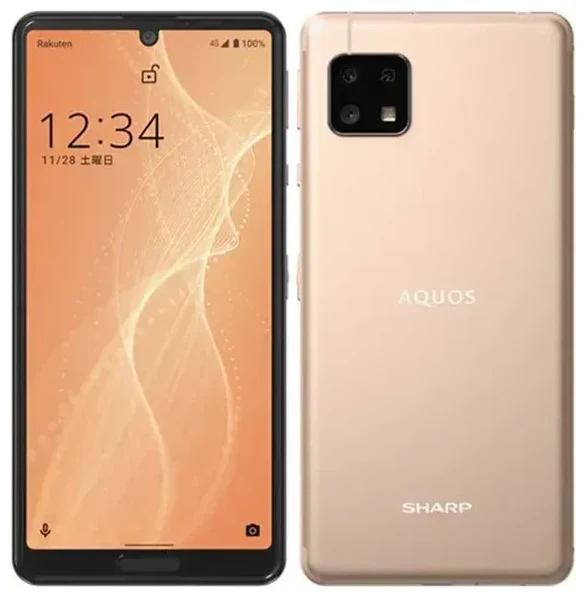
Does the Sharp Aquos Sense 4 Lite support eSIM?
No, the Sharp Aquos Sense 4 Lite does not support eSIM. This budget-friendly device, released primarily for the Japanese market through Rakuten Mobile, relies exclusively on a physical nano-SIM card for cellular connectivity.
Sharp Aquos Sense 4 Lite eSIM compatibility
All variants of the Sharp Aquos Sense 4 Lite lack embedded SIM technology. The device features a single physical SIM card slot and does not offer dual-SIM functionality of any kind—neither dual physical SIM nor the eSIM-plus-physical-SIM combination found in many modern smartphones. If you're searching for "does the Sharp Aquos Sense 4 Lite have eSIM," the answer is definitively no across all regional models.
Sharp has included eSIM support in select other Aquos models for specific markets, but the Sense 4 Lite was positioned as an affordable entry-level device and omits this feature. You'll need to use a traditional SIM card for all network connections.
Your connectivity options with the Sharp Aquos Sense 4 Lite
Since the Sharp Aquos Sense 4 Lite doesn't offer eSIM support, you'll manage connectivity through its physical nano-SIM slot. Here's what you need to know about using this device with traditional SIM cards.
Setting up a physical SIM card
When you need to change carriers or add a travel SIM, follow these steps:
- Power off your Sharp Aquos Sense 4 Lite completely before handling the SIM tray.
- Locate the SIM tray on the side of the device and use the included ejector tool (or a small paperclip) to gently pop it out.
- Place your nano-SIM card in the tray, aligning the notched corner correctly.
- Reinsert the tray firmly until it sits flush with the device body.
- Power on the phone and wait 30–60 seconds for it to detect the network.
- Navigate to Settings → Network & internet → Mobile network to confirm your carrier appears and configure any required APN settings.
- Restart the device if mobile data doesn't connect immediately.
Consider an eSIM-capable alternative
If you frequently travel or want the convenience of switching carriers digitally, you might want to check another device's eSIM compatibility before your next phone purchase. Later Aquos models and many current mid-range smartphones include eSIM alongside physical SIM slots, giving you more flexibility.
Staying connected abroad with the Sharp Aquos Sense 4 Lite
Without eSIM capability, your international connectivity options center on physical SIM cards—but you still have practical ways to avoid expensive roaming charges.
Travel SIM cards for international trips
Purchase a prepaid travel SIM card before departure or at your destination airport. These physical cards work exactly like your home SIM: swap them into the nano-SIM slot, and you'll get local rates for data, calls, and texts. The downside is you'll lose access to your home number while the travel SIM is installed, so you won't receive calls or SMS messages sent to your regular number (including two-factor authentication codes).
Many travelers carry a second device or portable Wi-Fi hotspot to maintain access to both numbers simultaneously. If you frequently travel, exploring devices that support both eSIM and physical SIM for true dual-connectivity might save you hassle. While you can't browse eSIM plans for the Sharp Aquos Sense 4 Lite specifically, understanding what eSIM-capable devices offer helps you plan your next upgrade.
Portable hotspots and roaming alternatives
A pocket Wi-Fi device with its own data SIM provides internet access to your Sharp Aquos Sense 4 Lite (and other devices) without swapping your phone's SIM. You keep your home number active for calls and verification codes while the hotspot handles data. Some travelers find this more convenient than physically swapping SIM cards, especially on short trips.
Tips and troubleshooting
Managing a physical-SIM-only device requires a slightly different approach than eSIM-equipped phones, but a few practical steps keep connectivity smooth.
Keep your physical SIM secure
The nano-SIM card in your Sharp Aquos Sense 4 Lite is small and easy to lose when swapping for a travel SIM. Carry a small case or use the SIM-card-shaped cutout from your carrier's original packaging to safely store your home SIM while traveling. Label it clearly so you don't accidentally discard it.
Configure APN settings correctly
If mobile data doesn't work after inserting a new SIM, you may need to manually enter APN (Access Point Name) settings. Your carrier provides these details—usually on their website or included with the SIM card packaging. Go to Settings → Network & internet → Mobile network → Advanced → Access Point Names, tap the plus icon, and enter the required information exactly as provided.
Managing calls and texts while abroad
Without dual-SIM capability, you'll miss calls and messages sent to your home number when using a travel SIM. Enable Wi-Fi calling on your home carrier before you leave (if they support it), and install it temporarily when you have Wi-Fi access to check for missed communications. Alternatively, forward your home number to a VoIP service that can receive calls over data.
If you run into persistent connection issues with any SIM card, eSIM setup help resources often include general troubleshooting that applies to physical SIMs as well, including network selection and carrier settings updates.








