 WhatsApp +44 7367 063273
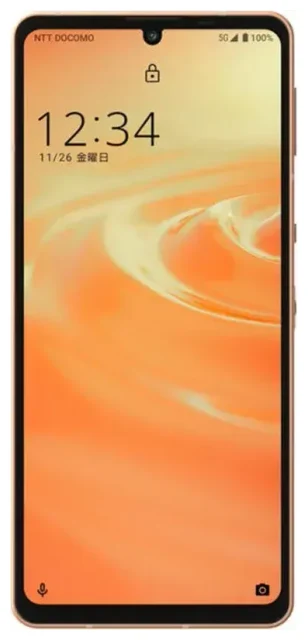
Does the Sharp Aquos Sense 6 support eSIM?
Yes, the Sharp Aquos Sense 6 supports eSIM, but only in specific regional variants. Japanese domestic models sold through carriers like NTT Docomo, au (KDDI), and Rakuten Mobile include eSIM functionality. International versions of the Aquos Sense 6 typically do not support eSIM.
Sharp Aquos Sense 6 eSIM compatibility by region
The Sharp Aquos Sense 6 was primarily released for the Japanese market, where eSIM support has become standard for many mid-range smartphones. If you purchased your device from a Japanese carrier or retailer, your model likely supports eSIM. However, if you bought an international version or an import model intended for other markets, eSIM functionality may not be available.
The device supports dual SIM operation using one physical nano-SIM and one eSIM simultaneously. This configuration lets you maintain two separate phone numbers or data plans on a single device—useful for separating personal and work lines or adding a travel data plan while keeping your primary number active.
Confirming eSIM support on your device
Because eSIM availability varies by region and carrier, verify your specific model before attempting setup. Check your phone's settings menu under "Network & internet" or "SIM cards" for any mention of eSIM or the ability to "Add a carrier" digitally. If you're uncertain about your particular Aquos Sense 6 variant, consult your carrier's documentation or Sharp's official specification sheet for your region to confirm eSIM capability.
How to set up an eSIM on the Sharp Aquos Sense 6
Setting up an eSIM on your Sharp Aquos Sense 6 takes about one minute once you have your activation QR code from your carrier or eSIM provider. The process follows Android's standard eSIM installation procedure.
Step-by-step eSIM installation
- Connect your Sharp Aquos Sense 6 to Wi-Fi before starting the installation process.
- Open the Settings app and navigate to "Network & internet."
- Tap "SIM cards" or "Mobile network," then select the option to add a new carrier or download a SIM.
- Choose "Add carrier" or "Download a SIM instead" when prompted.
- Scan the QR code provided by your eSIM carrier using your phone's camera. Hold the device steady and ensure the entire QR code is visible within the frame.
- Wait approximately 60 seconds while your device downloads and installs the eSIM profile.
- Label your new eSIM line with a recognizable name like "Travel Data" or "Work Line" to distinguish it from your physical SIM.
- Set your preferences for which line handles calls, texts, and mobile data in the SIM settings menu.
Managing multiple SIM profiles
After installation, you can switch between your physical SIM and eSIM or use both simultaneously. Access the SIM card settings to designate which line you want to use for mobile data, outgoing calls, and SMS messages. You can change these preferences at any time without reinstalling either profile.
Using a travel eSIM on the Sharp Aquos Sense 6
A travel eSIM offers the easiest way to stay connected abroad without paying international roaming fees on your primary carrier. Instead of hunting for a local SIM card at the airport or paying premium roaming rates, you can install a data-only travel eSIM before your departure.
Installing your travel eSIM before you fly
Purchase and install your travel eSIM while you're still at home with reliable Wi-Fi. The profile will sit dormant on your device until you arrive at your destination and enable it. This preparation means you'll have data connectivity the moment you land—no need to find Wi-Fi or a SIM vendor at the airport.
Your physical SIM stays in place, so you can still receive calls and text messages to your regular number. Just disable mobile data on your home line and enable it on your travel eSIM to avoid roaming charges while using affordable local rates for data. You can browse eSIM plans covering hundreds of countries and regions with various data allowances to match your trip length and usage needs.
Aquos Sense 6 eSIM review for international travel
The dual-SIM capability on Japanese Sharp Aquos Sense 6 models makes the device practical for international travel. You maintain access to your home number for important calls and two-factor authentication codes while using a cost-effective data plan through your eSIM. This setup eliminates the need to swap physical SIM cards or carry a second device.
Tips and troubleshooting
Most eSIM installations on the Sharp Aquos Sense 6 complete without issues, but a few settings adjustments can prevent common problems and ensure optimal performance.
Enable data roaming for your eSIM line
This trips up many first-time eSIM users: even though you're using a local or regional data plan, you must enable data roaming for your eSIM profile. Navigate to Settings > Network & internet > SIM cards, select your eSIM, and toggle "Roaming" on. Without this setting enabled, your eSIM won't connect to mobile networks.
Keep your home physical SIM's data roaming turned off to prevent accidental charges. You can leave the SIM active for incoming calls and texts while directing all data traffic through your travel eSIM.
Fix an eSIM that won't activate
If your QR code won't scan, ensure adequate lighting and hold your phone steady about six inches from the screen or printed code. Alternatively, most carriers provide a manual activation code you can enter by selecting "Enter activation code manually" during the setup process instead of scanning.
If the eSIM installs but won't connect to networks, restart your Sharp Aquos Sense 6 and verify that you've selected the correct line for mobile data in your SIM settings. Check that airplane mode is off and that you're in an area with network coverage from your eSIM provider.
Checking compatibility for other devices
If you own multiple devices or are considering a different phone, you can check another device's eSIM compatibility to confirm support before purchasing an eSIM plan. Not all Sharp Aquos models include eSIM functionality, and availability varies significantly by market and carrier.
For additional assistance with activation or troubleshooting on your Sharp Aquos Sense 6, visit our eSIM setup help resources for detailed guidance specific to your situation.








