 WhatsApp +44 7367 063273
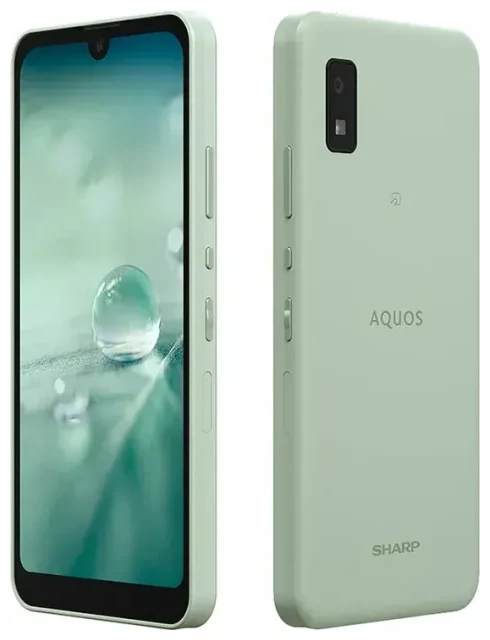
Does the Sharp Aquos Wish support eSIM?
Sharp Aquos Wish eSIM compatibility
Yes, the Sharp Aquos Wish supports eSIM, but only on models sold in Japan through domestic carriers. If you purchased your Sharp Aquos Wish from a Japanese carrier like NTT Docomo, au by KDDI, or SoftBank, your device includes eSIM functionality. International or unlocked variants of the Aquos Wish may not support eSIM—Sharp's budget models often have region-specific features.
The Sharp Aquos Wish offers dual SIM capability: one physical nano-SIM slot and one eSIM. You can use both simultaneously, which makes it practical for keeping your home number active while adding a travel data plan. The device does not support dual eSIM—you're limited to one eSIM profile and one physical SIM at a time.
How can I tell if my device is eSIM compatible?
To confirm your Sharp Aquos Wish has eSIM support, open Settings > Network & internet > SIMs. If you see an option to "Add mobile plan" or "Download a SIM," your device supports eSIM. If these options don't appear, your model likely doesn't include eSIM. Check your original purchase receipt or the manufacturer's specification sheet to verify your exact model variant, especially if you bought the device outside Japan.
How to set up an eSIM on the Sharp Aquos Wish
Set up an eSIM in Settings
Installing an eSIM on your Sharp Aquos Wish takes about 60 seconds once you have your QR code from your eSIM provider. You'll need an active Wi-Fi connection during setup. Follow these steps:
- Connect your Sharp Aquos Wish to Wi-Fi.
- Open Settings and tap Network & internet.
- Tap SIMs, then select Add mobile plan or the "+" icon.
- Choose Download a SIM instead? when prompted.
- Tap Next and scan the QR code provided by your eSIM carrier using your device's camera.
- Confirm the plan details and tap Download.
- Wait for the eSIM to activate—this usually takes 30–60 seconds.
- Label your new eSIM line (e.g., "Travel" or "Data") to distinguish it from your physical SIM.
- Choose which SIM to use for mobile data, calls, and texts in the SIM settings menu.
If your provider sent an activation code instead of a QR code, tap Enter it manually in step 5 and type the code exactly as provided. Your Sharp Aquos Wish will download the eSIM profile automatically.
Labelling and managing dual SIM lines
After installation, you can manage both SIMs from Settings > Network & internet > SIMs. Tap each line to rename it, set a preferred SIM for mobile data, or turn either line on or off. This flexibility lets you keep your home SIM active for calls and texts while routing all data through your travel eSIM.
Using a travel eSIM on the Sharp Aquos Wish
A travel eSIM is the simplest way to get mobile data abroad without paying roaming fees on your home plan. You buy a data-only eSIM for your destination, install it on your Sharp Aquos Wish before you fly, and activate it when you land. No need to hunt for SIM card shops at the airport or swap out your physical SIM.
Install your travel eSIM while you still have Wi-Fi at home or at the airport. Most eSIM plans let you complete the download before your trip and activate data once you arrive. Your physical SIM stays in place, so you can still receive calls and two-factor authentication codes on your home number. Just make sure to select your travel eSIM as the preferred line for mobile data in your SIM settings.
You can browse eSIM plans for hundreds of destinations, comparing coverage and data allowances. Many travelers install the eSIM a day or two before departure to avoid any last-minute connectivity issues. The Sharp Aquos Wish eSIM setup process is identical whether you're installing a travel plan or a domestic carrier eSIM.
Tips & troubleshooting
Turn on data roaming for the eSIM line
Even though your travel eSIM is a local plan, Android treats it as a separate line and may disable data roaming by default. Go to Settings > Network & internet > SIMs, tap your eSIM line, and toggle Roaming on. Without this step, your eSIM won't connect to mobile data even after activation. You can leave roaming off for your physical home SIM to avoid accidental charges.
Fix an eSIM that won't activate
If your QR code won't scan, check that your camera lens is clean and you have good lighting. Hold the code steady on a second screen or printed page—don't try to scan from the same device. If scanning still fails, use the manual activation code option instead. Make sure you're connected to Wi-Fi throughout the entire download process; a dropped connection can interrupt the installation.
If the eSIM downloads but won't connect to a network, restart your Sharp Aquos Wish and wait a few minutes. Some eSIM plans activate only when you reach your destination country. Double-check that you've selected the correct eSIM line for mobile data and that roaming is enabled for that line. If you continue to have trouble, you can find additional eSIM setup help or contact your eSIM provider's support team.
Keep your home SIM active for calls and authentication
Your physical SIM can remain active even while your eSIM handles data. Set your home SIM as the default for voice calls and SMS in the SIM settings menu, and choose your travel eSIM for mobile data. This setup ensures you'll receive important two-factor authentication texts and calls without paying international data roaming rates. You control which line does what, so you're never locked into one configuration.
If you need to check another device's eSIM compatibility, the process is similar: look for the "Add mobile plan" option in network settings or consult the manufacturer's official specifications.








