 WhatsApp +44 7367 063273
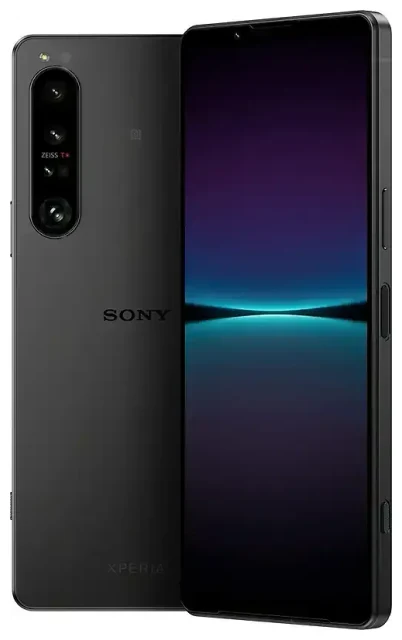
Does the Sony Xperia 1 IV support eSIM?
Sony Xperia 1 IV eSIM compatibility
The answer depends on where you bought your Sony Xperia 1 IV. Most variants of the Xperia 1 IV sold globally do not include eSIM support—they offer only dual physical nano-SIM slots. However, some regional models, particularly those sold in select markets, do support eSIM functionality.
Sony has not widely publicized eSIM availability for the Xperia 1 IV, and the feature is absent from most spec sheets. If you own the model number XQ-CT72 or similar variants sold in specific regions, you may have eSIM capability, but this is not guaranteed across all units bearing that designation. The safest approach is to check your device's settings: navigate to Settings > Network & internet > SIMs and look for an option to add an eSIM or download a SIM. If you don't see this option, your variant does not support eSIM.
Dual SIM configuration on the Xperia 1 IV
If your Sony Xperia 1 IV does support eSIM, it typically works alongside one physical nano-SIM card, giving you dual SIM functionality (one eSIM + one physical SIM). Most widely available models, however, use two physical nano-SIM slots instead. Because eSIM support on the Xperia 1 IV is not universal, verify your specific device before purchasing an eSIM plan. If you're uncertain, consult Sony's official specification sheet for your region or contact Sony support directly—never assume based on model number alone.
How to set up an eSIM on the Sony Xperia 1 IV
Set up an eSIM in Settings
If your Sony Xperia 1 IV variant supports eSIM, the setup process takes about 60 seconds. You'll need a QR code from your eSIM provider, a stable Wi-Fi connection, and your device unlocked and ready.
- Open Settings and tap Network & internet.
- Tap SIMs, then look for Add mobile plan or Download a SIM instead? (the exact wording varies by Android version).
- When prompted, tap Next and allow the camera to scan the QR code provided by your eSIM provider.
- Wait while your Xperia 1 IV downloads and installs the eSIM profile—this usually takes 30–60 seconds.
- Once installed, tap the new eSIM line to label it (e.g., "Travel" or "Work") and configure whether it's used for mobile data, calls, or SMS.
- Turn on the eSIM line and, if you're traveling, enable Data roaming for that line in the SIM settings.
Activate your eSIM profile
After installation, your eSIM should connect automatically if you're in an area with coverage from your chosen provider. You can toggle between your physical SIM and eSIM for data in Settings > Network & internet > SIMs by selecting which line to use for mobile data. Keep your home SIM active if you want to receive calls and text messages on your usual number.
Using a travel eSIM on the Sony Xperia 1 IV
If your Sony Xperia 1 IV supports eSIM, a travel eSIM is the simplest way to get mobile data abroad without paying roaming fees or hunting for a local SIM card shop. You can install a travel eSIM before you leave home, so you land with data already active on your phone.
Install your travel eSIM while you're still connected to Wi-Fi—ideally a day or two before departure. Most travel eSIM plans activate either when you arrive in the destination country and connect to a local network, or on a date you select during purchase. Once installed, the eSIM profile stays on your Xperia 1 IV, and you can top it up or reuse it on future trips to the same region. Your physical SIM stays in place, so you can still receive calls and two-factor authentication codes on your home number. You simply choose the eSIM line for mobile data when you're abroad. Browse eSIM plans to find coverage for your destination.
Tips & troubleshooting
Turn on data roaming for the eSIM line
A common issue: your eSIM installs successfully, but you have no data connection. The fix is usually simple—go to Settings > Network & internet > SIMs, tap your eSIM line, and make sure Roaming is turned on. Despite the name, you need data roaming enabled for the eSIM to work, even if you're using a local provider in that country. Also confirm that the eSIM line is selected as your preferred connection for mobile data.
Fix an eSIM that won't activate
If the QR code won't scan, check that your camera lens is clean and the QR code is displayed at full brightness on another screen (don't try to scan from a printed page if it's low quality). Alternatively, most providers offer a manual entry option—look for a link like "Enter activation code manually" during setup and type in the SM-DP+ address and activation code provided by your eSIM carrier.
If your Xperia 1 IV won't show the option to add an eSIM at all, your variant does not support the feature. In that case, you'll need to use a physical travel SIM or check another device's eSIM compatibility if you're considering an upgrade. Keep your physical SIM active for your home number to receive calls and SMS, especially two-factor authentication codes, while using the eSIM exclusively for data abroad. For step-by-step assistance with installation, visit eSIM setup help.








