 WhatsApp +44 7367 063273
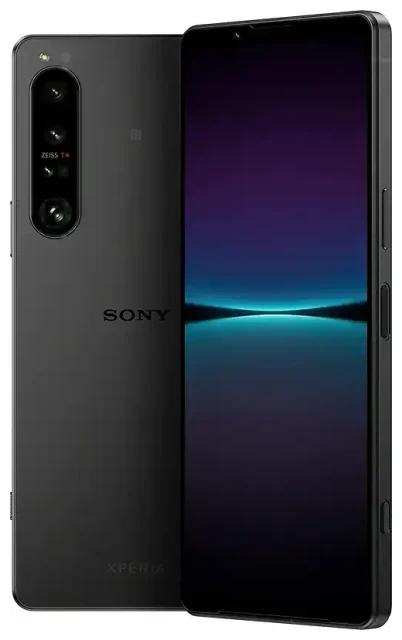
Does the Sony Xperia 10 IV support eSIM?
Yes, the Sony Xperia 10 IV supports eSIM on most global variants. Sony released the Xperia 10 IV with eSIM capability built into the majority of models sold worldwide, making it a solid choice if you need flexible connectivity options.
Sony Xperia 10 IV eSIM compatibility by model
The XQ-CC72 model number, which covers most international markets including Europe, Asia-Pacific, and Latin America, includes eSIM support. However, some regional variants—particularly those sold through specific carriers or in certain markets like Japan—may have different configurations. If you purchased your Xperia 10 IV through a carrier, check your phone's specifications in Settings > Device information to confirm eSIM is available, or consult Sony's official spec sheet for your exact model.
Dual SIM configuration on the Xperia 10 IV
The Sony Xperia 10 IV offers dual SIM functionality using one physical nano-SIM slot and one eSIM. You can run both simultaneously, which means you can keep your home number active on the physical SIM while using an eSIM for data when you travel. The device does not support dual eSIM; you'll always need at least one physical card if you want to use two numbers at once.
How to set up an eSIM on the Sony Xperia 10 IV
Setting up an eSIM on your Xperia 10 IV takes about a minute once you have your QR code from your eSIM provider. Make sure you're connected to Wi-Fi before you start—the phone needs internet access to download your eSIM profile.
Step-by-step eSIM installation
- Open Settings on your Sony Xperia 10 IV.
- Tap Network & internet, then select SIMs or Mobile network.
- Choose Add carrier or Add mobile plan (the wording may vary slightly depending on your Android version).
- Select Download a SIM instead? or Use QR code.
- Point your camera at the QR code provided by your eSIM carrier. The phone will scan and verify the code automatically.
- Wait 30–60 seconds while the eSIM profile downloads and activates.
- Label your new eSIM line with a recognizable name like "Travel" or "Data" to distinguish it from your physical SIM.
- Set your preferences for which SIM handles calls, texts, and mobile data in the SIM settings menu.
If your eSIM provider sends an activation code as text instead of a QR image, tap Enter activation code manually in step 4 and type in the code they provided.
Switching between SIM lines
After installation, you can control which SIM the Xperia 10 IV uses for data by going to Settings > Network & internet > SIMs and tapping your preferred line under Mobile data. You can toggle each SIM on or off independently, which is useful when you want to pause one line temporarily without deleting it.
Using a travel eSIM on the Sony Xperia 10 IV
A travel eSIM gives you mobile data in another country without paying international roaming fees from your home carrier. Instead of hunting for a local SIM card shop when you land, you install the eSIM before you leave and activate it when you arrive.
Why travel eSIMs work well on the Xperia 10 IV
Because the Sony Xperia 10 IV supports a physical SIM plus an eSIM, you can keep your regular number active for calls and text messages (including two-factor authentication codes) while the eSIM handles all your data. You won't need to swap out your home SIM or carry multiple physical cards.
Install your travel eSIM a day or two before your trip while you're still on Wi-Fi at home. The profile will sit dormant on your phone until you enable it and turn on data roaming for that line. When you land, switch mobile data to the eSIM line in your settings, and you'll have local data rates immediately. You can browse eSIM plans for your destination and compare data packages before you travel.
Tips & troubleshooting
Most eSIM installations on the Xperia 10 IV go smoothly, but a few settings can trip you up if they're not configured correctly.
Enable data roaming for your eSIM line
Your eSIM will almost certainly be treated as "roaming" even when you're in the country it was designed for, because the profile is registered to a carrier different from your physical SIM's home network. Go to Settings > Network & internet > SIMs, tap your eSIM line, and turn on Roaming. Without this toggle enabled, your eSIM won't connect to mobile data. Don't worry—you won't incur roaming charges on a prepaid travel eSIM; it only uses the data bucket you purchased.
Keep your home SIM active for calls and texts
You can leave your physical SIM turned on while using the eSIM for data. Set your home SIM as the default for voice calls and SMS in the SIM settings, and route data through the eSIM. This way you'll still receive verification codes and phone calls on your regular number without using expensive roaming data.
Fix an eSIM that won't activate
If the QR code won't scan, check that your camera lens is clean and you're holding the phone steady about six inches from the screen or paper. If scanning repeatedly fails, manually enter the activation code your provider included with the QR image—it's usually a long string starting with "LPA:1$". If the eSIM profile downloads but shows "Not activated" or won't connect, restart your Xperia 10 IV and wait a few minutes; sometimes the carrier network takes time to provision the line on their end. If you're still stuck after an hour, reach out to eSIM setup help or contact your eSIM provider's support team with your activation code.
Verify your device compatibility
If you don't see an option to add an eSIM in your Network settings, your specific Xperia 10 IV variant may not support it, or a carrier may have disabled the feature through software. You can check another device's eSIM compatibility if you're considering an upgrade, or confirm your exact model number against Sony's published specifications. Reddit threads about the Xperia 10 IV eSIM often mention the XQ-CC72 as the variant with confirmed eSIM support, so that model number is a good reference point.








