 WhatsApp +44 7367 063273
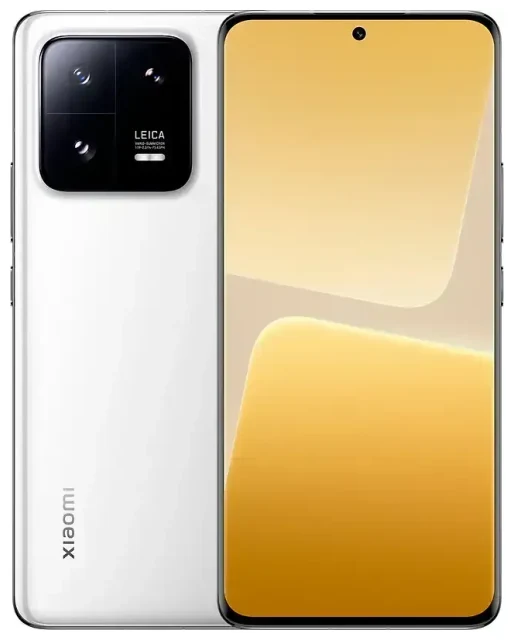
Does the Xiaomi 13 Pro support eSIM?
Xiaomi 13 Pro eSIM compatibility
Yes, but only specific variants of the Xiaomi 13 Pro support eSIM. Models sold in mainland China include eSIM functionality, while most international versions—including those sold in Europe, India, and other global markets—rely exclusively on physical nano-SIM cards. This is a critical distinction: the same model number can have different connectivity features depending on where it was manufactured and sold.
If you purchased your Xiaomi 13 Pro outside mainland China, it almost certainly does not support eSIM. Check your device's original retail packaging or the manufacturer's spec sheet for your specific region to confirm. Xiaomi has not widely advertised eSIM support for this model in international marketing materials, and carrier compatibility lists typically exclude non-Chinese variants.
Dual SIM configuration on the Xiaomi 13 Pro
Chinese mainland models that do support eSIM can run dual SIM: one eSIM plus one physical nano-SIM simultaneously. You cannot use two eSIMs at once on the Xiaomi 13 Pro. This setup lets you keep your primary number in the physical slot and add a secondary line—ideal for separating work and personal calls, or adding a local data plan when you travel.
How to set up an eSIM on the Xiaomi 13 Pro
Set up an eSIM in Settings
If you have a mainland China variant with eSIM support, installing a new eSIM profile takes about 60 seconds. You'll need a QR code from your carrier or eSIM provider, a Wi-Fi connection, and your device unlocked and updated to the latest MIUI version.
- Open Settings and tap SIM cards & mobile networks.
- Tap Add mobile plan or the "+" icon to begin adding an eSIM.
- Select Scan QR code and point your camera at the QR code provided by your carrier or eSIM vendor. Alternatively, enter the activation code manually if the QR won't scan.
- Wait while the Xiaomi 13 Pro downloads and installs the eSIM profile—this usually completes within 30–60 seconds.
- Label your new line with a recognizable name, such as "Travel" or "Work," so you can easily tell your SIMs apart.
- Choose which SIM to use for mobile data, calls, and SMS in the SIM settings menu. You can switch these defaults anytime.
Activate the eSIM profile
Once installed, the eSIM should activate automatically if you're within your carrier's coverage area. You'll see signal bars next to the new line's label. If activation doesn't happen immediately, restart your device and confirm that mobile data is enabled for the eSIM line in your SIM settings.
Using a travel eSIM on the Xiaomi 13 Pro
A travel eSIM is the simplest way to get mobile data abroad without paying roaming fees from your home carrier. Instead of hunting for a physical SIM card at the airport or dealing with unpredictable roaming charges, you install a prepaid data eSIM before you leave home. The eSIM activates when you land, giving you immediate access to local networks at local rates.
Install your travel eSIM while you're still connected to Wi-Fi—ideally a day or two before departure. This gives you time to troubleshoot any setup issues and ensures the profile is ready to connect the moment you arrive. You can keep your home SIM active in the physical slot for incoming calls and text messages, including two-factor authentication codes, while the eSIM handles all your data traffic. Browse eSIM plans for your destination and compare coverage and data allowances before you travel.
Remember that your Xiaomi 13 Pro must be carrier-unlocked to accept eSIMs from third-party providers. Devices locked to a specific carrier may reject eSIM profiles from other networks, even if the hardware technically supports eSIM.
Tips & troubleshooting
Turn on data roaming for the eSIM line
When you're using a travel eSIM, you must enable data roaming for that line—even though you're not technically "roaming" in the traditional sense. Go to Settings > SIM cards & mobile networks, select your eSIM, and toggle Data roaming on. Without this setting enabled, the eSIM won't connect to local networks abroad.
Keep your home SIM active if you need to receive calls and SMS, but turn off data roaming for that line to avoid accidental charges. Set the eSIM as your default for mobile data so all your apps and browser traffic use the travel plan.
Fix an eSIM that won't activate
If the QR code won't scan, try increasing your screen brightness or cleaning your camera lens. Poor lighting and reflections can interfere with QR detection. You can also enter the activation code manually by selecting the manual entry option instead of scanning. Copy the SM-DP+ address and activation code exactly as provided—one wrong character will cause the install to fail.
If the eSIM profile installs but won't connect, restart your Xiaomi 13 Pro and confirm the APN settings are correct for your eSIM provider. Some carriers require specific APN configurations, which you'll find in your provider's setup instructions. If you're still stuck, eSIM setup help can walk you through common activation issues. You can also check another device's eSIM compatibility if you're considering switching phones.
Confirm eSIM support before you buy
If you're purchasing a Xiaomi 13 Pro specifically for eSIM functionality, verify the exact variant and region before you commit. Ask the seller for the model number and country of origin, and cross-reference that against Xiaomi's official specifications. International resellers sometimes list features that apply only to Chinese variants, leading to confusion when the device arrives without eSIM capability.








