 WhatsApp +44 7367 063273
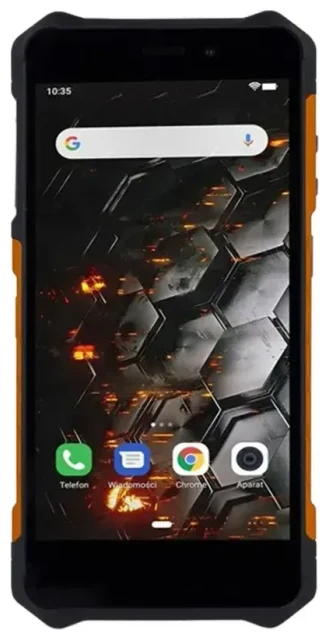
Does the Zte Blade 3 support eSIM?
No, the Zte Blade 3 does not support eSIM. This budget Android smartphone, released in 2012, predates eSIM technology and relies exclusively on a physical SIM card for cellular connectivity. No regional variants or carrier-specific versions of the Zte Blade 3 offer eSIM capability.
Zte Blade 3 eSIM compatibility
The Zte Blade 3 features a single micro-SIM card slot. At the time of its release, eSIM technology had not yet been introduced to consumer smartphones. The device runs on 3G networks and was designed as an entry-level phone with basic connectivity features. If you need eSIM functionality, you'll need to consider a newer smartphone model that includes this technology.
Physical SIM card specifications
Your Zte Blade 3 accepts a micro-SIM card (not nano-SIM, which is the current standard). The device does not support dual SIM functionality in any form—neither dual physical SIM nor the eSIM plus physical SIM combination found in modern phones. You can use one micro-SIM at a time for voice, text, and mobile data.
Your options without eSIM on the Zte Blade 3
Since the Zte Blade 3 doesn't support eSIM, you'll work exclusively with physical SIM cards. This means purchasing a traditional SIM card from a carrier and inserting it into your device. While this lacks the flexibility of digital eSIM profiles, physical SIM cards remain widely available and work reliably for voice and data.
Using a physical travel SIM
If you're traveling internationally with your Zte Blade 3, you can purchase a physical travel SIM or a local SIM card at your destination. Here's how to set it up:
- Power off your Zte Blade 3 completely before removing the SIM card.
- Locate the SIM card slot (typically on the side or beneath the battery cover, depending on your model variant).
- Remove your current micro-SIM card carefully using the ejector tool or by lifting the battery cover.
- Insert the new micro-SIM card with the gold contacts facing down, aligned with the slot guides.
- Replace the battery cover if applicable, then power on your device.
- Wait 30–60 seconds for the network to register, then enter the PIN if your new SIM requires one.
- Configure mobile data settings by going to Settings > Wireless & networks > Mobile networks > Access Point Names and selecting or adding the carrier's APN.
Consider an eSIM-capable device
If you frequently travel or want the convenience of switching carriers digitally, upgrading to a phone with eSIM support makes sense. Most flagship smartphones released after 2018 and many mid-range Android devices from 2020 onward include eSIM capability. You can check another device's eSIM compatibility before purchasing to ensure it meets your needs.
Staying connected abroad with the Zte Blade 3
Without eSIM functionality, your international connectivity options on the Zte Blade 3 involve physical SIM cards. You have three main approaches: using your home carrier's roaming service, buying a local SIM card at your destination, or purchasing a physical travel SIM before departure.
Physical travel SIM versus local SIM cards
Physical travel SIM cards designed for multiple countries can be ordered online and delivered before your trip. These offer convenience but typically cost more than local SIM cards purchased at your destination. Local SIM cards usually provide the best rates for data and calls within a single country, but require you to find a carrier store or airport kiosk upon arrival. Make sure any SIM you purchase is cut to micro-SIM size or comes with an adapter, as the Zte Blade 3 won't accept the newer nano-SIM format without one.
Why newer devices offer more flexibility
Modern phones with eSIM support let you install a digital data plan in minutes, often before you leave home, without swapping physical cards. You can browse eSIM plans covering 200+ countries and activate them instantly through a QR code. While this isn't possible on the Zte Blade 3, it illustrates why eSIM technology has become standard on newer smartphones. If your Zte Blade 3 is your primary device and you travel regularly, upgrading to an eSIM-compatible phone will simplify connectivity and often reduce costs.
Tips and troubleshooting for SIM cards on the Zte Blade 3
Working with physical SIM cards requires a bit more care than digital eSIM profiles, but the process is straightforward once you understand the basics. Here are practical tips to avoid common issues when using a new SIM card in your Zte Blade 3.
Enable data roaming for international travel
When you insert a foreign SIM card, your Zte Blade 3 may not automatically connect to mobile data. Go to Settings > Wireless & networks > Mobile networks and toggle on "Data roaming." This setting tells your phone to use the visiting network's data services. Double-check that mobile data itself is enabled in the quick settings or notification shade.
SIM card not recognized
If your Zte Blade 3 displays "No SIM" or "Insert SIM," first power off the device and reseat the card, ensuring it clicks into place properly. Confirm you're using a micro-SIM, not a nano-SIM without an adapter. If the SIM works in another phone but not in your Zte Blade 3, the card slot contacts may need cleaning with compressed air or isopropyl alcohol on a cotton swab (phone powered off). For persistent issues, you can find eSIM setup help and general connectivity support resources, though remember that eSIM-specific guidance won't apply to this older model.
Keep your home SIM for backup
If you swap in a travel SIM, store your original home SIM in a safe place—a SIM card holder or the packaging from your new SIM works well. You'll need your home SIM to receive calls or two-factor authentication codes on your usual number. Since the Zte Blade 3 has only one SIM slot, you'll need to physically swap cards if you want to switch between numbers, so plan accordingly if you're expecting important messages on your home line.








