 WhatsApp +44 7367 063273
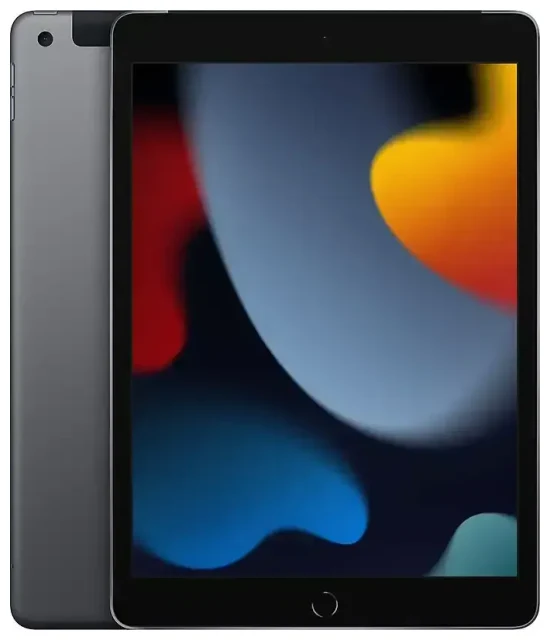
Does the Apple iPad (9th Generation) support eSIM?
Yes, the Apple iPad (9th Generation) supports eSIM, but only on Wi-Fi + Cellular models. If you purchased the Wi-Fi-only version, it does not have cellular capabilities and cannot use eSIM or physical SIM cards. The iPad (9th Generation) was released in 2021 and includes a nano-SIM tray alongside eSIM support on cellular-enabled models, giving you flexibility in how you connect.
Apple iPad (9th Generation) eSIM compatibility
All regional variants of the Wi-Fi + Cellular model support eSIM technology. You can use either a physical nano-SIM card, an eSIM, or both simultaneously for dual-SIM functionality. This means you can keep a home data plan on your physical SIM while adding a travel eSIM for international trips, or run two eSIM profiles if your carrier supports it. The device supports one active cellular connection at a time—you'll switch between profiles in Settings rather than having both active simultaneously like on some newer iPad models.
Check your model variant
To confirm you have a cellular-capable iPad, check the back of your device for the model number (starts with A2603, A2604, or A2605 for cellular models). Wi-Fi-only models carry different identifiers. You can also verify in Settings > General > About—cellular models will display an IMEI number, while Wi-Fi-only versions will not.
How to set up an eSIM on the Apple iPad (9th Generation)
Setting up an Apple iPad (9th Generation) eSIM takes about sixty seconds once you have your QR code from your carrier or travel eSIM provider. Your iPad must be running iPadOS 15 or later, which it supports natively. Make sure you're connected to Wi-Fi before starting the installation process.
Step-by-step eSIM installation
- Open the Settings app on your iPad and tap Cellular Data or Mobile Data, depending on your region.
- Tap Add a New Plan or Add Cellular Plan if you already have an existing profile.
- Use your iPad's camera to scan the QR code provided by your eSIM carrier—hold your device steady until it recognizes the code.
- Tap Add Cellular Plan when prompted, then wait while the eSIM profile downloads and installs.
- Label your plan with a descriptive name like "Travel" or "Home" to identify it easily if you're using multiple profiles.
- Choose which line to use for cellular data if you have more than one plan installed.
- Toggle on the cellular plan to activate it—you should see signal bars appear within a few moments.
Alternative activation methods
If your carrier provides an activation code instead of a QR code, you can enter it manually. In Settings > Cellular Data, tap Add Cellular Plan, then choose Enter Details Manually at the bottom of the screen. Some carriers also support direct app-based activation—check with your provider to see if they offer this option for iPads.
Using a travel eSIM on the Apple iPad (9th Generation)
A travel eSIM is the simplest way to get cellular data on your iPad when you're abroad, with no roaming charges from your home carrier. Instead of hunting for local SIM cards at the airport or dealing with carrier stores in a foreign language, you can browse eSIM plans for your destination and install them before you leave home.
Install before departure
Purchase and install your travel eSIM while you're still connected to Wi-Fi at home. The profile will sit dormant on your iPad until you reach your destination and turn it on. Once you land, simply enable the travel eSIM in Settings > Cellular Data, and you'll have immediate data connectivity without swapping physical cards or visiting a store. This works in over 190 countries, depending on the eSIM provider you choose.
Keep your home number accessible
If you're also using a physical nano-SIM for your home carrier, leave it installed—you can receive calls and texts for two-factor authentication while using the travel eSIM for data. Just make sure to select your travel eSIM as the default line for cellular data in Settings to avoid unexpected roaming charges on your home plan.
Tips & troubleshooting
Most eSIM installations on the iPad (9th Generation) work flawlessly, but a few settings adjustments can prevent common issues. These tips will help you get connected quickly and resolve problems if your eSIM won't activate properly.
Enable data roaming for eSIM profiles
This trips up many first-time eSIM users: you must turn on Data Roaming for your eSIM line, even though it's a local data plan. In Settings > Cellular Data, tap your eSIM profile name, then toggle Data Roaming to the on position. Without this enabled, your iPad won't connect to the network. Don't worry—you won't incur roaming charges because you're using a local eSIM plan, not your home carrier abroad.
What to do if the QR code won't scan
If your iPad's camera can't recognize the QR code, check that your screen brightness is turned up if you're scanning from another device, or try printing the code on paper. Poor lighting can also interfere—move to a well-lit area. As a backup, use the manual entry option and type in the activation code provided by your carrier. You can also get eSIM setup help if you're still having trouble after trying these steps.
Switching between eSIM profiles
The iPad (9th Generation) stores multiple eSIM profiles but only uses one at a time. To switch between profiles, go to Settings > Cellular Data, tap the plan you want to use, and toggle it on. The previously active plan will automatically turn off. This makes it easy to switch between home and travel plans without reinstalling anything.
Check compatibility before purchasing
Before buying an eSIM plan, verify that your specific destination country and carrier are supported. Most travel eSIM providers list compatible networks on their websites. If you need to confirm eSIM support for another device you own, you can check another device's eSIM compatibility on our dedicated tool.









