 WhatsApp +44 7367 063273
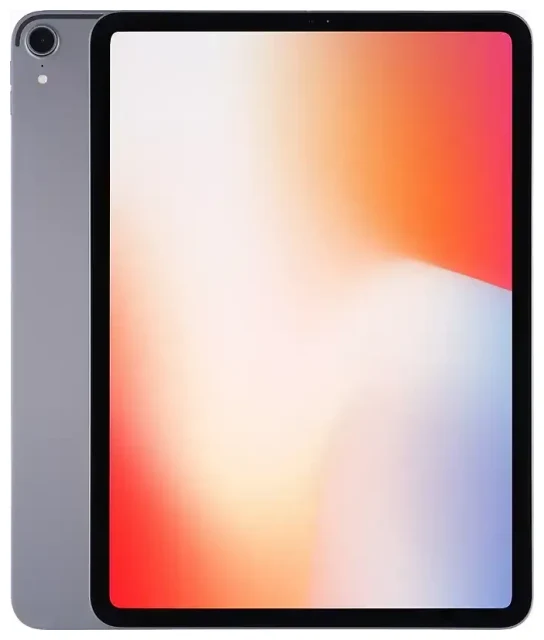
Does the Apple iPad Pro 11-inch (1st Generation) support eSIM?
Yes, the Apple iPad Pro 11-inch (1st Generation) supports eSIM, but only on Wi-Fi + Cellular models. If you purchased a Wi-Fi-only variant, it does not have cellular capability and cannot use an eSIM or physical SIM.
Apple iPad Pro 11-inch (1st Generation) eSIM compatibility
The Wi-Fi + Cellular version of the Apple iPad Pro 11-inch (1st Generation), released in November 2018, includes a nano-SIM tray and built-in eSIM. This was the first iPad Pro model to feature eSIM support. All regional variants of the Wi-Fi + Cellular model—sold in the United States, Europe, Asia, and other markets—include eSIM functionality.
The device does not support dual eSIM. You can use either a physical nano-SIM in the tray or an eSIM profile, but not two eSIMs simultaneously. You can, however, have multiple eSIM profiles stored on the device and switch between them in Settings without needing to re-download each time.
Verify your model
To confirm you have a Wi-Fi + Cellular model, go to Settings > General > About and look for a "Carrier" or "Network" entry. You can also check the model number (Settings > General > About > Model Number, then tap to reveal the A-number). The Wi-Fi + Cellular model is A1980 or A2013, depending on your region. If you see only a Wi-Fi network option and no Cellular Data menu in Settings, your iPad is Wi-Fi-only and cannot use eSIM.
How to set up an eSIM on the Apple iPad Pro 11-inch (1st Generation)
Setting up an eSIM on your Apple iPad Pro 11-inch (1st Generation) takes about a minute once you have a QR code from your carrier or travel eSIM provider. The process installs a digital cellular plan without a physical SIM card.
Step-by-step eSIM installation
- Make sure your iPad is connected to Wi-Fi and unlocked.
- Open Settings, then tap Cellular Data (or Mobile Data in some regions).
- Tap Add a New Plan or Add Data Plan.
- Use your iPad's camera to scan the QR code provided by your eSIM provider. Position the QR code in the frame and hold steady until the iPad recognizes it.
- Tap Continue when prompted. The eSIM profile will download and install, usually within 30–60 seconds.
- Once installed, you can label the plan (e.g., "Travel Data" or "Work") to identify it easily if you have multiple plans stored.
- Toggle on Turn On This Line to activate the eSIM for cellular data.
Managing multiple eSIM profiles
Your Apple iPad Pro 11-inch (1st Generation) can store several eSIM profiles at once, though only one can be active alongside a physical SIM at any time. To switch between eSIM profiles, go to Settings > Cellular Data, tap the plan you want to use, and toggle it on. The previously active eSIM will automatically deactivate.
Using a travel eSIM on the Apple iPad Pro 11-inch (1st Generation)
A travel eSIM gives you mobile data in another country without paying roaming fees on your home plan. Instead of hunting for a local SIM card at the airport, you install a data-only eSIM before you leave and activate it when you land.
How travel eSIMs work on your iPad Pro
Purchase a travel eSIM plan for your destination and install the profile while you're still at home on Wi-Fi. The eSIM sits dormant until you arrive and turn on cellular data. You'll have immediate access to a local network without swapping hardware. This is especially useful on an iPad, where you can share the connection via Personal Hotspot to other devices or simply use it for maps, email, and browsing on the go.
When you're ready to choose a plan, browse eSIM plans covering over 200 countries and regions. Look for data-only packages sized to your trip—whether you need a few gigabytes for a weekend or more for a month abroad.
Install your travel eSIM before departure
Download and install your travel eSIM profile before your flight. Keep the line toggled off until you reach your destination. Once you land, open Settings > Cellular Data, select your travel eSIM, and turn it on. Your iPad will connect to a local network, and you're ready to use data without a roaming bill from your home carrier.
Tips and troubleshooting
Turn on data roaming for the eSIM line
Even though it's a local eSIM in your destination, iPadOS may still require the "Data Roaming" toggle to be on for the eSIM line. Go to Settings > Cellular Data, tap your travel eSIM, and ensure Data Roaming is enabled. This is normal and won't trigger roaming charges because you're using a local plan, not your home carrier's network.
Keep your home SIM for calls and two-factor codes
If you also have a physical SIM installed in your Apple iPad Pro 11-inch (1st Generation), you can leave it in place. Some users keep a home SIM active to receive SMS messages or two-factor authentication codes, while the eSIM handles data. Just make sure your home line's data is toggled off to avoid accidental roaming charges.
Fix an eSIM that won't activate
If your eSIM profile won't install or the QR code doesn't scan, first confirm your iPad is connected to Wi-Fi. Restart the device and try again. If the camera struggles to read the QR code in low light, increase the screen brightness or print the code on paper. You can also enter the activation details manually by tapping "Enter Details Manually" in the Add Data Plan screen and typing the SM-DP+ address and activation code provided by your carrier.
If you're still stuck, eSIM setup help is available, and you can double-check your device's compatibility status or try a different provider's QR code. Occasionally, a network reset (Settings > General > Reset > Reset Network Settings) clears configuration conflicts, though you'll need to re-enter Wi-Fi passwords afterward.
Switching between eSIM profiles
You don't need to delete an eSIM to use a different one. Store multiple profiles—home, travel, work—and switch by going to Settings > Cellular Data, selecting the plan you want, and toggling it on. Only one eSIM can be active at a time on the Apple iPad Pro 11-inch (1st Generation), but switching takes seconds and doesn't require re-downloading the profile. If you do want to remove an old eSIM permanently, tap the plan name and select "Remove Cellular Plan."
Check compatibility for other devices
If you own multiple tablets or phones and want to confirm which support eSIM, you can check another device's eSIM compatibility before purchasing a plan. Newer iPad models and most recent iPhones also support eSIM, and many Android devices have added the feature in recent generations.









