 WhatsApp +44 7367 063273
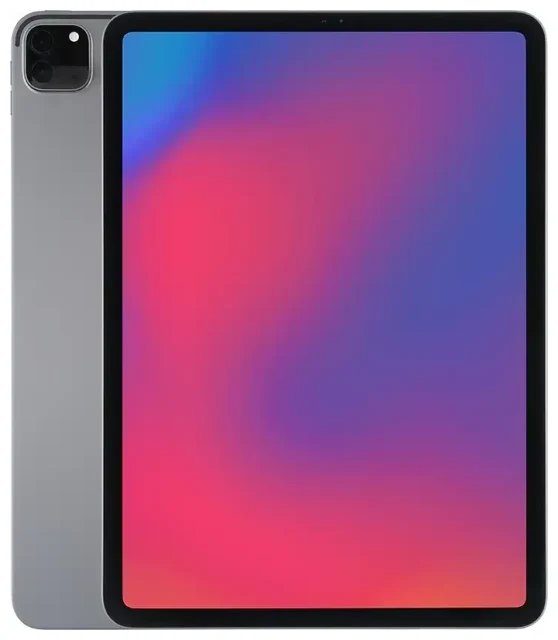
Does the Apple iPad Pro 11-inch (2nd Generation) support eSIM?
Apple iPad Pro 11-inch (2nd Generation) eSIM compatibility
Yes, the Apple iPad Pro 11-inch (2nd Generation) supports eSIM—but only on Wi-Fi+Cellular models. If you purchased the Wi-Fi-only variant, your device does not have cellular connectivity at all and cannot use eSIM or physical SIM cards.
Released in March 2020, the iPad Pro 11-inch 2nd generation was Apple's first iPad Pro 11-inch model to support eSIM technology across all cellular-enabled versions, regardless of region. All Wi-Fi+Cellular configurations worldwide include eSIM capability built into the device.
Does the iPad Pro 11-inch 2nd generation have a SIM card slot?
The Wi-Fi+Cellular models include a nano-SIM tray on the right edge of the device. This means your iPad Pro supports dual SIM: you can use one physical nano-SIM card and one eSIM profile simultaneously, or multiple eSIM profiles (though only one can be active at a time alongside the physical SIM). You cannot use two eSIMs at once on this iPad generation—it's either eSIM plus physical SIM, or a single active connection.
How to set up an eSIM on the Apple iPad Pro 11-inch (2nd Generation)
Set up an eSIM in Settings
Installing an eSIM profile on your Apple iPad Pro 11-inch (2nd Generation) takes about sixty seconds. Your carrier or eSIM provider will send you a QR code, activation code, or allow you to install directly through their app. Here's how to activate eSIM on iPad 11 Pro using the QR method:
- Make sure your iPad is connected to Wi-Fi and updated to the latest iPadOS version.
- Open Settings and tap Cellular Data (or Mobile Data depending on your region).
- Tap Add a New Plan or Add Cellular Plan.
- Use your iPad's camera to scan the QR code provided by your eSIM carrier.
- Tap Continue and wait while the eSIM profile downloads and installs—this usually takes 30–60 seconds.
- Label your new cellular plan with a custom name (like "Travel Data" or "Europe eSIM") to distinguish it from your primary SIM if you're using both.
- Choose which line to use for cellular data in Settings > Cellular Data.
Alternative activation methods
Some carriers let you install an eSIM for iPad Pro directly through their app, or by manually entering an activation code if the QR won't scan. Check your eSIM provider's instructions—most travel eSIM providers send detailed setup emails immediately after purchase.
Using a travel eSIM on the Apple iPad Pro 11-inch (2nd Generation)
A travel eSIM is the simplest way to get mobile data abroad on your iPad Pro 11-inch 2nd generation without paying roaming fees or hunting for a local SIM card shop. You buy a data plan for your destination country or region, install the eSIM profile before you fly, and activate it when you land.
Because the Apple iPad Pro 11-inch (2nd Generation) eSIM can work alongside your physical SIM, you can keep your home SIM installed for calls and texts (if you have a phone number on your iPad plan) while routing all data through the travel eSIM. This setup avoids surprise roaming charges entirely.
Install your travel eSIM while you still have Wi-Fi—at home or in the airport lounge. Most eSIM profiles activate automatically when they detect the destination network, though some require you to manually turn on the line in Settings. You can browse eSIM plans by country and data amount to find the right option for your trip.
Travel eSIMs work on the iPad Pro 2nd generation 11-inch the same way they do on iPhones: pure data connectivity, no phone number (unless the plan specifically includes one), and you manage everything in the Cellular Data settings.
Tips & troubleshooting
Turn on data roaming for your eSIM line
Even though you're using a local or regional eSIM, iPadOS still treats it as "roaming" relative to your primary SIM. Go to Settings > Cellular Data, tap your eSIM plan, and toggle Data Roaming on. Without this setting enabled, your eSIM won't connect to the network.
Keep your home SIM active for two-factor authentication
If your primary carrier SIM receives SMS codes for banking or account logins, leave it installed in the physical tray. You can receive texts on it even while using the eSIM for data—just make sure you've selected the eSIM as your default data line in Settings.
Fix an eSIM that won't activate
If the QR code won't scan, try increasing screen brightness on the device displaying the code, or save the QR as an image and view it full-screen. You can also enter the activation code manually: tap Enter Details Manually during setup and paste the SM-DP+ address and activation code your provider sent.
If the eSIM installs but won't connect, restart your iPad and confirm data roaming is enabled for that line. Check that your eSIM plan is active and hasn't expired—some travel eSIMs have validity windows that start from purchase or first connection. For persistent issues, you can find eSIM setup help and detailed troubleshooting guidance.
If you're unsure whether a different device supports eSIM, you can check another device's eSIM compatibility before you buy a plan.









