 WhatsApp +44 7367 063273
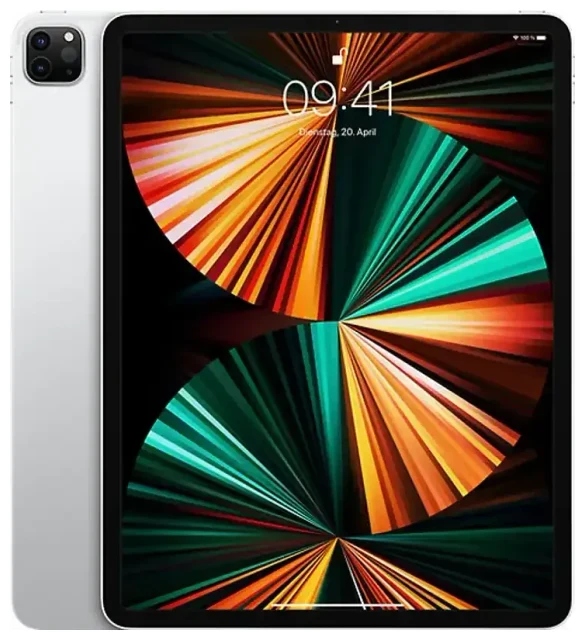
Does the Apple iPad Pro 12.9-inch (5th Generation) support eSIM?
Apple iPad Pro 12.9-inch (5th Generation) eSIM compatibility
Yes, the Apple iPad Pro 12.9-inch (5th Generation) supports eSIM—but only on Wi-Fi+Cellular models. If you purchased the Wi-Fi-only variant, your device does not have cellular capability and cannot use eSIM or physical SIM cards. The Wi-Fi+Cellular model, released in May 2021, includes both eSIM and a nano-SIM tray, giving you flexible connectivity options.
Dual SIM capability on the iPad Pro 5th generation
The Apple iPad Pro 12.9-inch (5th Generation) Wi-Fi+Cellular supports dual SIM: you can use the physical nano-SIM slot alongside the eSIM simultaneously. This configuration lets you keep a home carrier on one line and add a travel or secondary data plan on the other. All regions and storage configurations (128GB, 256GB, 512GB, 1TB, 2TB) of the Wi-Fi+Cellular model support eSIM, though carrier compatibility varies by country.
How to set up an eSIM on the Apple iPad Pro 12.9-inch (5th Generation)
Set up an eSIM in Settings
Setting up an eSIM on your Apple iPad Pro 12.9-inch (5th Generation) takes about 60 seconds once you have your QR code or activation details from your carrier. Make sure your iPad is connected to Wi-Fi before you start.
- Open Settings and tap Cellular Data (or Mobile Data in some regions).
- Tap Add a New Plan or Set Up Cellular.
- Use your iPad's camera to scan the QR code provided by your carrier or travel eSIM provider. Alternatively, tap Enter Details Manually if you received an activation code.
- Wait for the eSIM profile to download and install—this usually completes in 30–60 seconds.
- Label your new plan (for example, "Travel Data" or "Work") to distinguish it from any physical SIM.
- Choose which line to use for cellular data in Settings > Cellular Data. You can switch between your physical SIM and eSIM anytime.
Activating your eSIM profile
After installation, your eSIM should activate automatically if you have an active plan. If the line shows "No Service," restart your iPad and confirm with your carrier that the plan is active. You can manage multiple eSIM profiles—install several and switch between them as needed, though only one eSIM can be active alongside your physical SIM at a time.
Using a travel eSIM on the Apple iPad Pro 12.9-inch (5th Generation)
Get data abroad without roaming fees
A travel eSIM is the easiest way to stay connected when you travel with your Apple iPad Pro 12.9-inch (5th Generation). Instead of paying international roaming charges or hunting for a local SIM card at the airport, you install a data plan before you leave. Your eSIM activates when you land, giving you instant access to maps, email, and web browsing.
Install your travel eSIM while you're still at home and connected to Wi-Fi—most plans let you activate on arrival or on a date you choose. You can keep your home physical SIM in place for calls and texts (if your plan supports it), while the travel eSIM handles data. Browse available regional and country-specific data plans, compare coverage, and install directly on your iPad by visiting browse eSIM plans.
Why travelers prefer eSIM for iPad connectivity
You avoid the hassle of swapping tiny SIM cards, and you can load eSIMs for multiple destinations in advance. The Apple iPad Pro 12.9-inch (5th Generation) stores several eSIM profiles, so if you're visiting three countries in one trip, you can pre-install all three and switch between them in Settings as you cross borders.
Tips & troubleshooting
Turn on data roaming for your eSIM line
Even though your travel eSIM is a "local" plan in many cases, you may still need to enable data roaming for it to work. Go to Settings > Cellular Data, tap your eSIM line, and toggle Data Roaming on. This won't trigger roaming fees if your eSIM plan includes the country you're in—it simply allows the iPad to connect to the partner network.
Keep your home SIM for calls and two-factor authentication
If your physical SIM supports voice and SMS, leave it installed so you can receive verification codes and phone calls. Set your eSIM as the default for cellular data, and your home SIM will still handle voice and messages. This dual-SIM setup is particularly useful for business travelers who need to stay reachable on their main number.
Fix an eSIM that won't activate
If your QR code won't scan, check that your camera lens is clean and the lighting is good. You can also tap Enter Details Manually and type the activation code provided by your carrier. If the eSIM profile installs but shows "No Service," restart your iPad, confirm the plan is active with your provider, and verify that the correct line is selected for cellular data in Settings. Carrier settings updates can also help—check for updates in Settings > General > About. If you're still stuck, eSIM setup help is available.
Check compatibility before you buy a plan
Not all carriers support eSIM on tablets, and some travel eSIM providers only offer phone plans. Confirm that the plan you're purchasing works on iPads before you buy. You can check another device's eSIM compatibility if you're comparing models or helping a friend set up their tablet.









