 WhatsApp +44 7367 063273
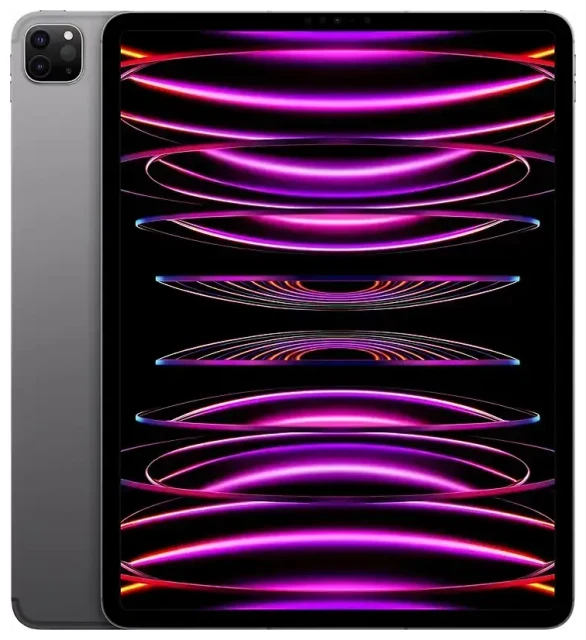
Does the Apple iPad Pro 12.9-inch (6th Generation) support eSIM?
Apple iPad Pro 12.9-inch (6th Generation) eSIM compatibility
Yes, the Apple iPad Pro 12.9-inch (6th Generation) supports eSIM, but only on Wi-Fi+Cellular models. If you purchased a Wi-Fi-only model, your device does not have cellular capability and cannot use eSIM or physical SIM cards. The 6th generation iPad Pro 12.9-inch was released in 2022 with the M2 chip and model number A2436 (US), A2764 (international), or A2437 (China mainland).
Wi-Fi+Cellular models support a single eSIM profile at a time. Unlike some iPhones that let you run dual eSIM configurations simultaneously, this iPad uses one eSIM profile or one nano-SIM card in the physical tray—not both at the same time. You can store multiple eSIM profiles on the device and switch between them in Settings, but only one can be active for cellular data.
Which models have eSIM support
Check your model identifier in Settings > General > About. Look for "Model Number" and tap it to reveal the A-number. All A2436, A2764, and A2437 variants with cellular capability include eSIM. The easiest way to confirm: if your iPad has a nano-SIM tray on the right edge, it supports eSIM. Wi-Fi-only units have no tray and no eSIM functionality.
How to set up an eSIM on the Apple iPad Pro 12.9-inch (6th Generation)
Set up an eSIM in Settings
Setting up an eSIM on the Apple iPad Pro 12.9-inch (6th Generation) takes about sixty seconds once you have a QR code from your carrier or travel eSIM provider. Your iPad must be connected to Wi-Fi and running iPadOS 16 or later for the smoothest experience.
- Open Settings and tap Cellular Data (or Mobile Data in some regions).
- Tap Add a New Plan or Set Up Cellular if this is your first plan.
- Use your iPad's camera to scan the QR code provided by your carrier or eSIM vendor. Position the code in the frame and hold steady.
- Wait while your iPad downloads and installs the eSIM profile. You'll see a confirmation screen when installation completes.
- Tap Continue, then label your plan (for example, "Travel Data" or "Home Plan") so you can identify it later.
- Choose whether this plan will be your default for cellular data if you have multiple profiles stored.
- Tap Done. Your cellular connection should activate within a few seconds.
Alternative activation methods
Some carriers let you install an eSIM by entering details manually or through their app. If manual entry is required, tap Enter Details Manually in step 3 and input the SM-DP+ address and activation code your provider supplied. Carrier apps often automate the entire process—open the app, purchase or activate your plan, and the eSIM installs without scanning a QR code.
Using a travel eSIM on the Apple iPad Pro 12.9-inch (6th Generation)
Stay connected abroad without roaming fees
A travel eSIM gives you local data rates in the country you're visiting, so you avoid expensive roaming charges from your home carrier. You can browse eSIM plans for more than 190 destinations, buy a data-only plan that fits your trip length, and install the profile before you board your flight. Once you land, turn on cellular data for that eSIM line and you're online immediately.
Install your travel eSIM while you still have Wi-Fi at home or at the airport. The QR code arrives by email as soon as you complete your purchase. Scan it following the steps above, label it "Travel," and leave it inactive until you arrive. When you reach your destination, go to Settings > Cellular Data, tap your travel plan, and toggle Turn On This Line. Set it as your default data line and disable data roaming on your home line to prevent surprise charges.
Data-only eSIMs for tablets
Most travel eSIM plans for tablets are data-only—you get internet access but no phone number for voice calls or SMS. That's perfect for an iPad, which doesn't make traditional phone calls anyway. You can still use iMessage, FaceTime, WhatsApp, and other internet-based services over your eSIM data connection. Keep your home SIM or eSIM active in another device if you need to receive two-factor authentication codes by SMS while traveling.
Tips & troubleshooting
Enable data roaming for your eSIM line
Even though it's called a "travel" or "local" eSIM, you still need to turn on Data Roaming for that line in Settings. Go to Settings > Cellular Data, tap the travel eSIM plan, and toggle Data Roaming on. This setting tells your iPad to connect to the partner networks your eSIM provider uses. Without it, you won't get a data connection even though the eSIM is installed and active.
What to do if the QR code won't scan
If your iPad won't recognize the QR code, check that it's displayed clearly on another screen or printed without glare. Adjust your distance and angle until the code sits fully inside the camera frame. If scanning still fails, tap Enter Details Manually and type the SM-DP+ address and activation code exactly as shown, including hyphens and capitalization. Restart your iPad if manual entry also fails, then try again.
Managing multiple eSIM profiles
Your Apple iPad Pro 12.9-inch (6th Generation) can store several eSIM profiles, but only one is active at a time. To switch between plans, open Settings > Cellular Data, tap the plan you want to use, and toggle Turn On This Line. Turn off the previous line if it's still active. This flexibility lets you keep a home data plan and one or more travel plans installed, switching as needed without re-scanning QR codes. You can check another device's eSIM compatibility if you want to pair your iPad with an eSIM-capable phone for complete travel connectivity.
Physical SIM vs eSIM
The nano-SIM tray on the Apple iPad Pro 12.9-inch (6th Generation) accepts a traditional plastic SIM card. You can use a physical SIM or an eSIM, but not both simultaneously. If you insert a nano-SIM, the iPad ignores any installed eSIM profile until you remove the physical card or turn off its line. For most travelers, eSIM is more convenient—you don't need to find a SIM ejector tool, visit a store, or handle tiny cards. Switch carriers or plans instantly from Settings.









