 WhatsApp +44 7367 063273
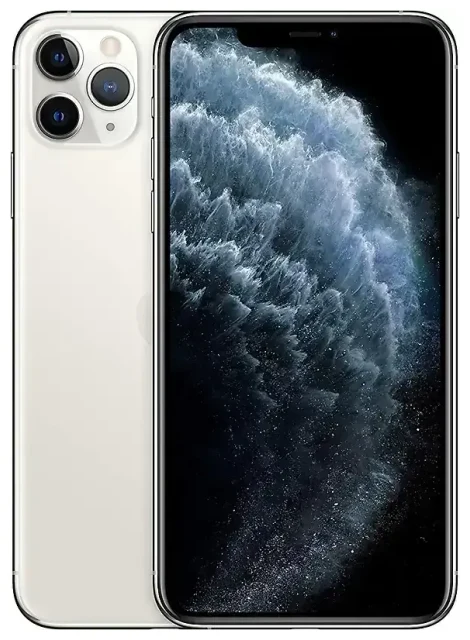
Does the Apple iPhone 11 Pro Max support eSIM?
Apple iPhone 11 Pro Max eSIM compatibility
Yes, the Apple iPhone 11 Pro Max supports eSIM. All models sold worldwide—regardless of region or carrier—include eSIM capability built into the device. This means you can activate an eSIM profile without needing a physical SIM card for that line.
The Apple iPhone 11 Pro Max offers dual SIM functionality by combining one physical nano-SIM card (in the SIM tray) with one active eSIM profile. You can store multiple eSIM profiles on the device, but only one eSIM can be active at a time alongside the physical SIM. This dual SIM setup lets you maintain two phone numbers or plans simultaneously—useful for separating work and personal lines, or adding a local data plan when traveling.
Dual SIM limitations on the iPhone 11 Pro Max
The device does not support dual eSIM operation; you must use at least one physical nano-SIM if you want two active lines. The Apple iPhone 11 Pro Max can hold up to eight eSIM profiles in memory, and you can switch between them in Settings, but only one eSIM and one physical SIM can connect to networks at the same time.
How to set up an eSIM on the Apple iPhone 11 Pro Max
Set up an eSIM in Settings
Activating an eSIM on your Apple iPhone 11 Pro Max typically takes about 60 seconds once you have your QR code or activation details from your carrier or eSIM provider. You need an active Wi-Fi or cellular connection to complete the download and installation.
- Open Settings and tap Cellular (or Mobile Data in some regions).
- Tap Add Cellular Plan.
- Use your camera to scan the QR code provided by your carrier or eSIM provider. If you received an activation code, tap Enter Details Manually instead.
- Wait while the eSIM profile downloads and installs—this usually takes 30–90 seconds.
- Tap Continue when prompted, then label your new line (e.g., "Travel," "Work," or "Secondary").
- Choose which line you want to use as your default for cellular data, iMessage, and FaceTime.
- If you already have a physical SIM installed, designate a default line for voice calls or select "Ask every time" if you prefer to choose manually.
Label your lines for easy management
After installation, you can manage both lines in Settings > Cellular. Each line appears with its label, and you can toggle data roaming, turn lines on or off, and adjust which line handles calls, messages, and data. This makes it easy to control an Apple iPhone 11 Pro Max eSIM alongside your primary physical SIM.
Using a travel eSIM on the Apple iPhone 11 Pro Max
A travel eSIM is an efficient way to get mobile data abroad without paying international roaming fees on your home carrier. You purchase a data plan for your destination, receive a QR code by email, and install the eSIM profile on your Apple iPhone 11 Pro Max before you depart or as soon as you land.
Because the device supports dual SIM, your home physical SIM stays in the tray and remains available for incoming calls and text messages (including two-factor authentication codes). Meanwhile, the travel eSIM handles all data traffic—maps, messaging apps, email, and web browsing—using a local network at local rates. You can browse eSIM plans for more than 190 countries and regions, with coverage that activates as soon as you arrive.
Install your travel eSIM before departure
Install the travel eSIM while you still have Wi-Fi at home or at the airport. The profile will sit dormant until you reach your destination and turn on the line in Settings. This way, you land with connectivity already configured and avoid hunting for airport Wi-Fi to complete setup. Many travelers install their eSIM a day or two early to confirm everything works, then toggle the line off until needed.
Tips & troubleshooting
Turn on data roaming for the eSIM line
Even though your travel eSIM is not your "home" carrier, iOS still classifies it as roaming when it connects to a local network abroad. Go to Settings > Cellular, tap your eSIM line, then enable Data Roaming. Without this toggle on, the eSIM will not connect to mobile data. Keep data roaming off on your home physical SIM to avoid unexpected charges from your primary carrier.
Keep your home SIM active for calls and two-factor authentication
Leave your physical SIM installed and turned on so you can receive calls and SMS messages—especially verification codes for banking apps and account logins. In Settings > Cellular > Cellular Data, select your eSIM as the data line, and in Default Voice Line, keep your home SIM if you want people to reach you on your usual number. Calls will still come through over your home carrier (check with them about roaming voice rates), while all data runs over the eSIM.
Fix an eSIM that won't activate
If the QR code won't scan, make sure the image is clear, your screen brightness is high, and you're holding the phone steady. If scanning fails repeatedly, tap Enter Details Manually and type the activation code provided by your eSIM provider. If the profile downloads but shows "No Service," confirm that the plan is active and covers your current location, then restart the device. You can also remove and reinstall the eSIM profile by going to Settings > Cellular, tapping the plan, and selecting Remove Cellular Plan, then adding it again. For persistent issues, reach out to eSIM setup help or your provider's support team.
If you're researching compatibility for a different device, you can check another device's eSIM compatibility to confirm whether it supports eSIM and dual SIM functionality.









