 WhatsApp +44 7367 063273
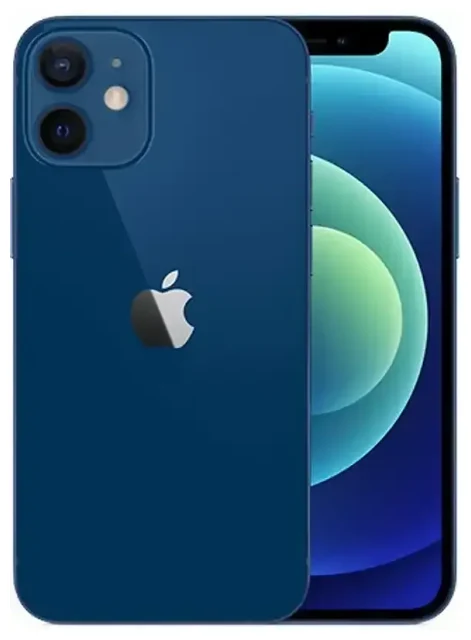
Does the Apple iPhone 12 Mini support eSIM?
Yes, the Apple iPhone 12 Mini supports eSIM. Every Apple iPhone 12 Mini sold worldwide—regardless of region or carrier—includes eSIM functionality built into the device. This applies to both unlocked models and carrier-locked versions from T-Mobile, AT&T, Verizon, and other networks.
Apple iPhone 12 Mini eSIM compatibility and dual SIM
The Apple iPhone 12 Mini offers dual SIM capability through one physical nano-SIM slot and one eSIM. You can keep your primary carrier on the physical SIM and add a second line via eSIM, or run both lines as eSIMs if your carrier supports eSIM for your main account. When using two lines, you can have both active simultaneously—choose which one handles cellular data, but both can receive calls and texts. Only one eSIM can be active for data at any given time, though you can store multiple eSIM profiles and switch between them in Settings.
If you bought your Apple iPhone 12 Mini unlocked, you have full flexibility to use any compatible carrier's eSIM. Carrier-locked models (common with installment plans) may restrict which eSIMs you can activate until the device is fully paid off and unlocked, so check with your carrier if you encounter activation issues.
How to set up an eSIM on the Apple iPhone 12 Mini
Setting up an eSIM on your Apple iPhone 12 Mini takes about sixty seconds once you have your QR code from your carrier or eSIM provider. Make sure you're connected to Wi-Fi before you begin, as the activation process requires an internet connection.
Set up an eSIM in Settings
- Open Settings and tap Cellular (or Mobile Data in some regions).
- Tap Add Cellular Plan.
- Use your camera to scan the QR code provided by your carrier or eSIM provider. If the QR code won't scan, tap Enter Details Manually and type in the activation code.
- Wait while your Apple iPhone 12 Mini verifies and installs the eSIM profile—this usually takes 20 to 60 seconds.
- Once installed, label your new line with a name like "Travel" or "Work" so you can easily identify which SIM handles data, calls, and messages.
- Choose your default line for cellular data in the next prompt, or adjust this later in Settings > Cellular.
After activation, your eSIM appears in the Cellular settings alongside any physical SIM. You can toggle each line on or off, assign a default line for iMessage and FaceTime, and switch your data line whenever needed.
eSIM vs physical SIM on the Apple iPhone 12 Mini
Both eSIM and physical nano-SIM function identically for calls, texts, and data—the only difference is the format. The physical SIM requires a tiny card inserted into the side tray, while the eSIM is embedded in the device and activated digitally. Many users prefer keeping their home carrier on the physical SIM and using eSIM for secondary lines or travel, since you can download and switch eSIM profiles without swapping hardware.
Using a travel eSIM on the Apple iPhone 12 Mini
A travel eSIM is the simplest way to get local data rates abroad without paying international roaming fees or hunting for a SIM card shop when you land. You install the eSIM profile before you leave home, then turn it on when your plane touches down. Your Apple iPhone 12 Mini continues to receive calls and texts on your primary SIM (if you leave it active), while the travel eSIM handles data.
Install before you fly
Purchase your eSIM plan online—whether for a single country or a regional bundle—and install it while you're still connected to Wi-Fi at home. The eSIM profile sits dormant until you enable it in your destination. Once you arrive, go to Settings > Cellular, select your travel eSIM, toggle on Turn On This Line, and set it as your data line. You'll have local data immediately, usually at a fraction of your home carrier's roaming rate.
You can browse eSIM plans for more than 200 destinations and compare coverage, data allowances, and validity periods before you book your trip. Most providers email your QR code instantly, so you can install the profile within minutes of purchase.
Tips & troubleshooting
A few settings adjustments will help you get the most out of dual SIM on your Apple iPhone 12 Mini and avoid common activation headaches.
Turn on data roaming for the eSIM line
If your eSIM won't connect to cellular data abroad, check that Data Roaming is enabled for that line. Go to Settings > Cellular, tap the eSIM line, then toggle Data Roaming on. This is safe—roaming charges only apply to your home carrier's SIM when you use it outside your plan's coverage area. Your travel eSIM operates as a local data connection, so roaming fees don't apply.
Keep the home SIM for calls and 2FA
Leave your primary physical SIM active (but not set as the data line) so you can still receive voice calls and two-factor authentication texts on your usual number. In Settings > Cellular > Cellular Data, choose your travel eSIM. Under Default Voice Line, keep your home SIM selected. That way, outbound calls use your home number unless you manually choose otherwise for each call.
Fix an eSIM that won't activate
If the QR code won't scan, ensure your camera lens is clean and you're holding the phone about six inches from the screen or printout. If scanning still fails, tap Enter Details Manually and input the SM-DP+ address and activation code provided by your carrier. If activation stalls or shows an error, restart your Apple iPhone 12 Mini and try again—most install issues resolve after a reboot. Persistent problems with an unlocked Apple iPhone 12 Mini usually trace to an expired QR code or an incorrectly entered activation code; contact your eSIM provider for a fresh code. If your phone is carrier-locked, you may need to request an unlock before installing third-party eSIMs.
For more detailed troubleshooting or device-specific help, you can get eSIM setup help or check another device's eSIM compatibility if you're comparing models.









