 WhatsApp +44 7367 063273
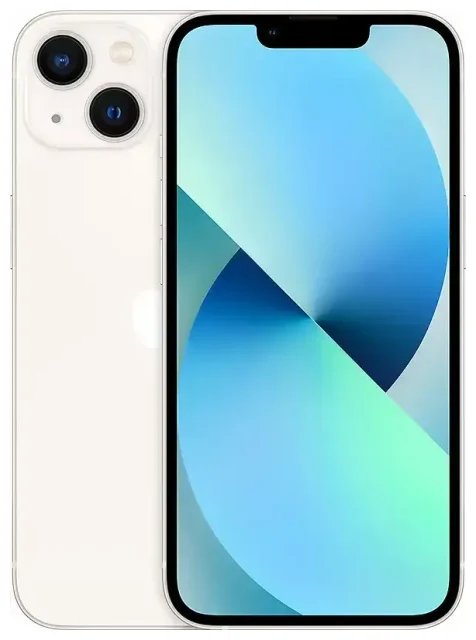
Does the Apple iPhone 13 support eSIM?
Yes, the Apple iPhone 13 supports eSIM. All Apple iPhone 13 models—regardless of storage capacity or region—include eSIM functionality built into the device. This applies to every iPhone 13 sold worldwide, including models purchased through carriers like Verizon, AT&T, T-Mobile, and international operators.
Apple iPhone 13 eSIM compatibility and dual SIM options
The Apple iPhone 13 offers flexible dual SIM capability. You can use one physical nano-SIM and one eSIM simultaneously, or configure two eSIMs at the same time if you prefer to go entirely SIM-card-free. The iPhone 13 supports multiple eSIM profiles stored on the device—up to eight eSIM profiles can be installed, though only two lines (one physical SIM plus one eSIM, or two eSIMs) can be active at once.
This dual SIM setup means you can keep your home number on the physical SIM slot while adding a travel eSIM for data abroad, or run two eSIM lines for work and personal use. The device handles both lines seamlessly, and you can switch your default line for data, calls, and messages in Settings.
How to set up an eSIM on the Apple iPhone 13
Setting up an eSIM on your Apple iPhone 13 takes about 60 seconds. You'll receive a QR code from your eSIM provider (via email or in their app), and iOS handles the installation automatically. Make sure you're connected to Wi-Fi before you start.
Step-by-step eSIM activation on iPhone 13
- Open Settings and tap Cellular (or Mobile Data in some regions).
- Tap Add Cellular Plan.
- Use your iPhone's camera to scan the QR code provided by your eSIM carrier or Esima.
- Tap Add Cellular Plan when the plan details appear on screen.
- Label your new line (for example, "Travel" or "Work") so you can tell your lines apart.
- Choose which line you want to use as your default for data, and which for calls and messages.
- If prompted, turn on Allow Cellular Data Switching to let your iPhone use either line for data when the other has no signal.
Your eSIM activates immediately once installed. If your carrier supports it, you may also see an option to transfer an existing plan from another iPhone via Bluetooth, or to enter activation details manually if you don't have a QR code handy.
Managing multiple eSIM profiles
To switch between installed eSIMs, go back to Settings > Cellular. You'll see all your plans listed. Tap a plan to turn it on or off, change its label, or adjust which line handles data. Only two lines can be active simultaneously, but you can store additional eSIM profiles and toggle them as needed—useful if you travel frequently to the same countries.
Using a travel eSIM on the Apple iPhone 13
A travel eSIM is the easiest way to get mobile data when you're abroad, without paying roaming fees to your home carrier. Instead of hunting for a local SIM card at the airport, you install an eSIM plan for your destination before you leave. The moment you land, you'll have data for maps, ride-sharing, messaging, and more.
Install your travel eSIM before you fly
Purchase and install your travel eSIM while you're still at home and connected to Wi-Fi. Most travel eSIM plans activate when they detect your destination country's network, so there's no risk of the plan starting early. Once installed, the eSIM profile sits dormant on your iPhone 13 until you arrive. You can browse eSIM plans for over 200 countries and regions, with data-only options that work alongside your existing phone number.
Keep your home SIM active for incoming calls and text messages (including two-factor authentication codes), and set your travel eSIM as the default data line. Your iPhone 13 will route data through the local eSIM and calls through your home number, so you stay reachable without surprise charges.
Tips & troubleshooting
Most eSIM installations on the Apple iPhone 13 work without issue, but a few settings and checks will help you avoid common problems.
Turn on data roaming for your eSIM line
This catches many people off guard: even though your eSIM is a local plan, iOS still treats it as "roaming" because it's not your primary carrier. Go to Settings > Cellular, tap your eSIM line, then tap Data Roaming and toggle it on. Without this setting enabled, your eSIM won't connect to mobile data. Your home SIM's roaming can stay off to prevent accidental charges.
Keep your home SIM active for calls and two-factor authentication
Don't remove or disable your home SIM while traveling unless you're certain you won't need it. Many banks, email providers, and apps send verification codes via SMS to your home number. If you disable that line entirely, you may get locked out of important accounts. The dual SIM setup on the iPhone 13 lets both lines coexist, so leave your home number on for calls and texts, and use the eSIM purely for data.
Fix an eSIM that won't activate
If your QR code won't scan, check that your camera lens is clean and that the code is displayed clearly on another screen or printed without glare. You can also tap Enter Details Manually in the Add Cellular Plan screen and type in the activation code your provider gave you. If the eSIM installs but won't connect, restart your iPhone 13, confirm that data roaming is on for that line, and verify you're in an area with network coverage. If you're still stuck, visit eSIM setup help or contact your eSIM provider for assistance.
If you're unsure about another device's eSIM capability, you can check another device's eSIM compatibility on Esima to confirm before you travel.









