 WhatsApp +44 7367 063273
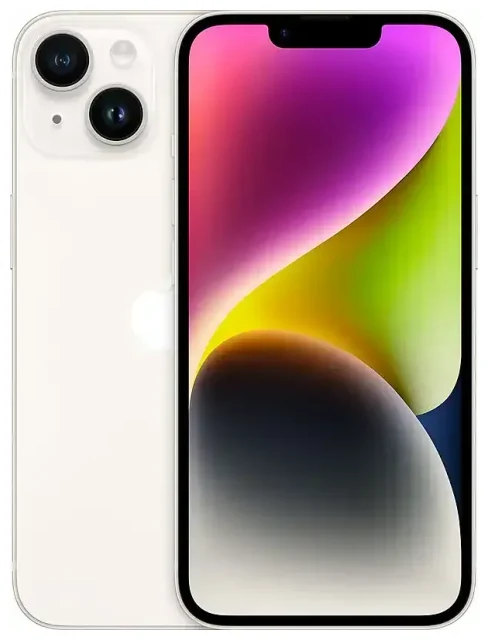
Does the Apple iPhone 14 support eSIM?
Apple iPhone 14 eSIM compatibility
Yes, the Apple iPhone 14 supports eSIM. All Apple iPhone 14 models—iPhone 14, iPhone 14 Plus, iPhone 14 Pro, and iPhone 14 Pro Max—come with eSIM capability, but the configuration depends on where your device was purchased.
US models sold by Apple and US carriers are eSIM-only. These devices have no physical SIM tray and rely entirely on eSIM technology. You can store up to eight eSIMs and use two active eSIMs simultaneously for dual SIM functionality.
International models (including those sold in the UK, Europe, Canada, Australia, and most other regions) ship with both eSIM support and a nano-SIM tray. These versions let you run dual SIM in several configurations: one physical nano-SIM plus one eSIM, or two active eSIMs while leaving the SIM tray empty.
How many eSIMs can the iPhone 14 hold?
Your Apple iPhone 14 can store up to eight eSIM profiles. You can have two lines active at once, which means you can keep your home number and a travel eSIM running side by side, or separate work and personal lines on a single device.
How to set up an eSIM on the Apple iPhone 14
Activate eSIM on iPhone 14 in Settings
Setting up an eSIM on your Apple iPhone 14 takes about a minute once you have your QR code or activation details from your carrier or eSIM provider. Make sure your device is connected to Wi-Fi before you begin.
- Open Settings and tap Cellular (or Mobile Data in some regions).
- Tap Add Cellular Plan or Add eSIM.
- Scan the QR code provided by your carrier or eSIM provider using your camera. If you received an activation code via email, you can also tap Enter Details Manually and input the SM-DP+ address and activation code.
- Wait while your iPhone downloads and installs the eSIM profile. This usually completes in under a minute.
- Once installed, label your new line with a name like "Travel" or "Work" so you can easily identify it.
- Choose which line you want to use for cellular data, and set your default line for voice calls and iMessage.
Set up an eSIM in Settings
After activation, your eSIM appears under Settings > Cellular. You can toggle each line on or off, configure which line handles data, and set separate preferences for calls and messages. If you're using both a physical SIM and an eSIM, you control both from the same menu.
Using a travel eSIM on the Apple iPhone 14
A travel eSIM is the easiest way to stay connected when you travel abroad without paying high roaming charges from your home carrier. Instead of hunting for a local SIM card at the airport or dealing with unreliable Wi-Fi, you install a data eSIM before you leave and activate it when you land.
Travel eSIMs give you instant mobile data in your destination country. You keep your home number active for calls and texts—important for two-factor authentication codes and staying reachable—while routing all your data through the travel eSIM at local rates. This dual-line setup is exactly what the Apple iPhone 14 was designed for.
Install your travel eSIM while you're still at home and connected to Wi-Fi. Most eSIM providers send a QR code by email immediately after purchase. Follow the setup steps above to add the travel plan as a secondary line. Once installed, turn off the new eSIM until you board your flight; when you arrive, enable it in Settings > Cellular, select it as your data line, and you're online. You can browse eSIM plans for your destination and compare coverage and data allowances.
Tips & troubleshooting
Turn on data roaming for the eSIM line
Your Apple iPhone 14 requires data roaming to be enabled for your eSIM to work, even though you're not technically "roaming" in the traditional sense. Go to Settings > Cellular, tap your eSIM line, then tap Data Roaming and toggle it on. Many travelers miss this step and wonder why their eSIM won't connect.
Keep your home SIM active for calls and SMS, especially for two-factor authentication. Set your home line as the default for voice and messages, and set the travel eSIM as your data line. This way, you receive calls and texts on your regular number while all your browsing, maps, and apps use the travel data.
Fix an eSIM that won't activate
If your QR code won't scan, check that your camera lens is clean and the code is displayed clearly on another screen or printed sharply. You can also enter the activation details manually—look for the SM-DP+ address and activation code in your eSIM provider's email, then tap Enter Details Manually during setup.
If the eSIM installs but won't connect to a network, restart your iPhone and make sure you've enabled data roaming for that line. Confirm that the eSIM line is selected as your data source under Settings > Cellular > Cellular Data. If you're still stuck, your eSIM provider's support team can verify the profile is active on their end. You can also check another device's eSIM compatibility if you're considering switching phones, or visit eSIM setup help for step-by-step assistance.
Remember that US-model iPhone 14 devices have no physical SIM slot. If you buy a US iPhone and take it abroad, you'll rely entirely on eSIM. International models give you the flexibility of a physical nano-SIM backup, which can be helpful in regions where eSIM infrastructure is still developing.









