 WhatsApp +44 7367 063273
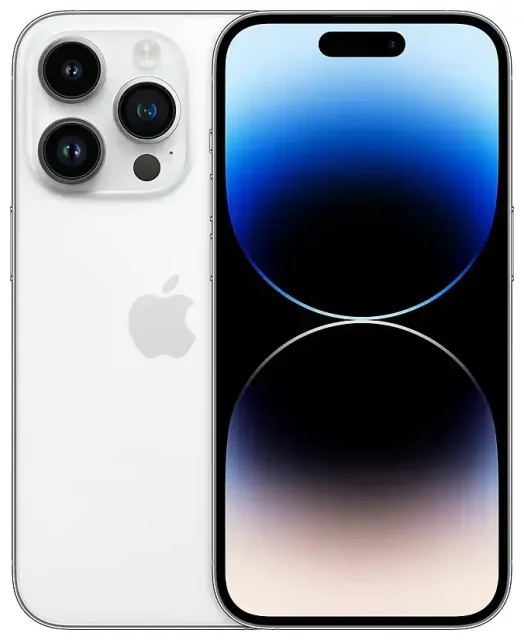
Does the Apple iPhone 14 Pro support eSIM?
Yes, the Apple iPhone 14 Pro supports eSIM. Every Apple iPhone 14 Pro model—regardless of where you purchased it—includes eSIM functionality. However, the way you use eSIM varies by region.
Apple iPhone 14 Pro eSIM compatibility by region
If you bought your Apple iPhone 14 Pro in the United States, it is eSIM-only with no physical SIM card slot. US models rely entirely on eSIM for cellular connectivity and support multiple eSIMs simultaneously (you can store eight or more eSIM profiles and have two active at once).
If you purchased your Apple iPhone 14 Pro outside the United States—in Europe, Asia, the Middle East, or elsewhere—your device includes both eSIM capability and a physical nano-SIM tray. International models support dual SIM: one nano-SIM plus one active eSIM, or two active eSIMs if you leave the physical slot empty.
Dual eSIM and dual SIM on the Apple iPhone 14 Pro
All Apple iPhone 14 Pro units can run two active lines at the same time. US models use dual eSIM (two eSIMs active concurrently). International models let you combine a physical SIM with an eSIM, or activate two eSIMs together. This setup is useful when you want to keep your home number for calls and texts while using a second line—such as a travel eSIM—for mobile data.
How to set up an eSIM on the Apple iPhone 14 Pro
Activating an eSIM on your Apple iPhone 14 Pro takes about a minute. You will need a QR code from your carrier or eSIM provider (sometimes delivered by email or displayed in an app), and a Wi-Fi or cellular data connection to complete the download.
Step-by-step eSIM activation on the Apple iPhone 14 Pro
- Open Settings and tap Cellular (or Mobile Data in some regions).
- Tap Add eSIM. If you see Add Cellular Plan, tap that instead.
- Choose Use QR Code and position your camera so the QR code fits inside the frame. The Apple iPhone 14 Pro will scan automatically.
- If the QR code won't scan, tap Enter Details Manually and type the SM-DP+ address and activation code provided by your carrier.
- Tap Add Cellular Plan when prompted. The eSIM profile will download—this usually takes 30–60 seconds.
- Label your new line with a descriptive name (for example, "Travel" or "Work") so you can identify it quickly in Settings.
- Choose which line you want to use for mobile data by default, and whether you want to allow cellular switching if your primary line has no coverage.
Converting a physical SIM to eSIM on the Apple iPhone 14 Pro
If you have an existing nano-SIM from a carrier that supports eSIM, you can often convert it without requesting a new QR code. Insert the physical SIM, then go to Settings → Cellular and look for a prompt to Convert to eSIM. Tap it, follow the on-screen steps, and your carrier will transfer your number to an eSIM profile. Once the transfer completes, you can remove the physical SIM card.
Using a travel eSIM on the Apple iPhone 14 Pro
A travel eSIM gives you mobile data in another country without paying international roaming fees from your home carrier. Because the Apple iPhone 14 Pro supports multiple eSIM profiles and dual active lines, you can install a travel eSIM before you fly, keep your home number active for calls and two-factor authentication, and use the travel eSIM purely for data.
Why install a travel eSIM before your trip
Most travel eSIM plans activate as soon as you land and connect to a local network, or on a date you choose during purchase. Installing the eSIM while you still have Wi-Fi at home means you avoid hunting for a café or hotel lobby connection when you arrive. Once installed, the profile sits dormant on your Apple iPhone 14 Pro until you reach your destination and turn it on.
You can browse eSIM plans that cover more than 190 countries, compare data allowances, and buy a plan that matches your trip length. The QR code arrives by email within seconds, and you scan it exactly as described above.
How to use a travel eSIM abroad on your Apple iPhone 14 Pro
Before you take off, open Settings → Cellular, tap your travel eSIM line, toggle Turn On This Line, and enable Data Roaming for that line only. Set the travel eSIM as your default line for Mobile Data. Keep your home SIM or eSIM turned on if you want to receive calls and SMS, but leave its data roaming off to avoid surprise charges. When you land, your Apple iPhone 14 Pro will connect to a local network automatically, and you'll have data without swapping a physical card or visiting a local carrier store.
Tips and troubleshooting
Turn on data roaming for your eSIM line
An eSIM from a foreign carrier or travel provider will only work if Data Roaming is enabled for that specific line. Go to Settings → Cellular, tap the travel eSIM, and toggle Data Roaming on. Your home line can keep data roaming off, so you stay in control of which SIM uses international networks.
Keep your home SIM or eSIM active for calls and two-factor codes
You can leave your home line turned on to receive phone calls and SMS verification codes while abroad. In Settings → Cellular, make sure your home line allows voice and text, but set your Mobile Data default to the travel eSIM. This way you get data from the local network and calls on your usual number, with no roaming charges for data.
What to do if your QR code won't scan
If the camera struggles to read the QR code—because of glare, screen brightness, or print quality—tap Enter Details Manually during setup. Your eSIM provider's email or account portal will list an SM-DP+ address and an activation code. Type both into the manual-entry fields, and the Apple iPhone 14 Pro will fetch the profile without scanning.
Check eSIM compatibility for other devices
If you travel with a tablet or share plans across family devices, you can check another device's eSIM compatibility to confirm it will work with the same travel eSIM provider. Not all iPads or Android phones support eSIM the same way, so verifying ahead of time saves you from buying a plan you can't use.
Contact support if activation fails
Occasionally an eSIM profile won't activate because of a network timeout or an error from the carrier's server. Restart your Apple iPhone 14 Pro, confirm you have a stable Wi-Fi or cellular connection, and try again. If the problem persists, reach out to eSIM setup help or your provider's customer service with the error code displayed on screen—they can reissue the QR code or push the profile remotely.









