 WhatsApp +44 7367 063273
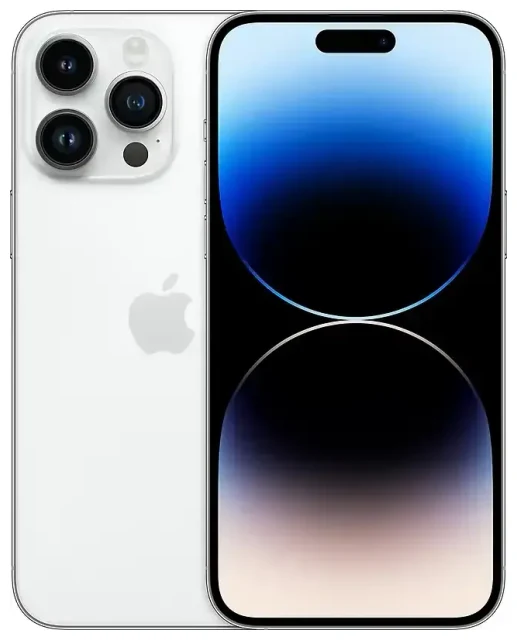
Does the Apple iPhone 14 Pro Max support eSIM?
Yes, the Apple iPhone 14 Pro Max supports eSIM across all models worldwide. This flagship device offers robust eSIM functionality, though the implementation varies by region.
Apple iPhone 14 Pro Max eSIM compatibility by region
US models of the Apple iPhone 14 Pro Max are eSIM-only devices. Apple removed the physical SIM card tray entirely from all iPhone 14 models sold in the United States, including the Pro Max. These devices support dual eSIM, allowing you to run two active eSIM profiles simultaneously without any physical SIM slot.
International models (sold outside the US, including Canada, Europe, Asia, and other regions) retain the traditional nano-SIM tray alongside full eSIM support. These versions let you use one physical nano-SIM card plus multiple eSIM profiles—up to eight eSIMs can be stored on the device, with two active at once (either dual eSIM or one physical SIM plus one eSIM).
Dual SIM capabilities on the Apple iPhone 14 Pro Max
The Apple iPhone 14 Pro Max offers true dual SIM functionality. You can maintain two active lines for calls, texts, and data. US models achieve this through dual eSIM, while international models support either dual eSIM or a physical nano-SIM paired with an eSIM. This flexibility makes the iPhone 14 Pro Max ideal for separating work and personal lines or adding a travel data plan while keeping your home number active.
How to set up an eSIM on the Apple iPhone 14 Pro Max
Setting up an eSIM on your Apple iPhone 14 Pro Max takes about 60 seconds once you have your QR code from your carrier or eSIM provider. The process is straightforward through the Settings app.
Step-by-step eSIM installation
- Connect your Apple iPhone 14 Pro Max to Wi-Fi or ensure you have a cellular data connection on your existing line.
- Open the Settings app and tap Cellular (or Mobile Data in some regions).
- Tap Add Cellular Plan (or Add eSIM on iOS 16 and later).
- Use your camera to scan the QR code provided by your carrier or eSIM provider. Position the QR code within the frame and it will scan automatically.
- Tap Add Cellular Plan when prompted to confirm the installation.
- Wait 30–60 seconds for the eSIM profile to download and activate.
- Label your new line with a descriptive name like "Travel," "Work," or the country name to identify it easily.
- Choose which line you want to use as your default for cellular data, voice calls, and iMessage/FaceTime.
Alternative activation methods
If your carrier supports it, you can also activate an eSIM on the Apple iPhone 14 Pro Max using carrier activation (where the eSIM is assigned directly through your carrier's app) or by entering activation details manually if you receive an SM-DP+ address and activation code instead of a QR code. Some US carriers also offer eSIM Quick Transfer, letting you transfer an eSIM from your old iPhone without contacting the carrier.
Using a travel eSIM on the Apple iPhone 14 Pro Max
A travel eSIM is the simplest way to get mobile data when you're abroad without paying expensive roaming charges from your home carrier. Instead of hunting for a local SIM card at the airport or dealing with unreliable hotel Wi-Fi, you can install a travel eSIM before you leave and have data the moment you land.
How travel eSIMs work on your device
Your Apple iPhone 14 Pro Max can store up to eight eSIM profiles, making it perfect for frequent travelers. Install a regional or country-specific data plan as a secondary eSIM while keeping your primary number active for calls and texts. When you arrive at your destination, simply switch your cellular data to the travel eSIM in Settings. Your home number remains available for incoming calls and two-factor authentication texts.
You can browse eSIM plans for over 190 countries and regions, comparing data allowances and coverage to find the right fit for your trip. Install the eSIM a day or two before departure—it won't activate or start using data until you reach your destination and turn it on. This advance setup means you'll have connectivity immediately upon arrival, perfect for rideshares, maps, and letting family know you've landed safely.
iPhone 14 Pro Max eSIM or physical SIM for travel
If you have an international model with a physical SIM tray, you might wonder whether to use a travel eSIM or buy a local physical SIM card. eSIMs offer clear advantages: you can purchase and install them remotely without finding a shop, there's no tiny SIM card to swap (and potentially lose), and you can switch between stored eSIMs instantly if you're visiting multiple countries. The digital approach also means you keep your original SIM safely in place for incoming calls.
Tips & troubleshooting
Most Apple iPhone 14 Pro Max eSIM installations work smoothly, but a few settings and common issues are worth knowing before you travel.
Enable data roaming for your eSIM line
This catches many first-time eSIM users: you must turn on Data Roaming for your travel eSIM line, even though you're not technically "roaming" in the traditional sense. Go to Settings → Cellular → tap your travel eSIM line → toggle Data Roaming on. Without this setting enabled, your eSIM won't connect to local networks and you'll have no data. Your home SIM's roaming can stay off to avoid accidental charges.
Managing multiple lines on the iPhone 14 Pro Max
Keep your home SIM or primary eSIM active while traveling so you can receive calls and SMS verification codes for banking or account logins. Set your travel eSIM as the default for Cellular Data only, while leaving your primary line as default for voice and messages. You can adjust these defaults anytime in Settings → Cellular. The iPhone 14 Pro Max clearly displays which line is in use with small labels next to the signal bars.
Fix an eSIM that won't activate
If your QR code won't scan, ensure you're holding your phone steady with adequate lighting on the code. You can also tap Enter Details Manually and type in the SM-DP+ address and activation code if your provider supplies them. If the eSIM installs but shows "No Service," restart your iPhone 14 Pro Max, confirm data roaming is enabled for that line, and verify you're in an area with coverage from the eSIM's supported networks. An unlocked device is required for most travel eSIMs—carrier-locked phones may reject third-party eSIM profiles.
For persistent issues, you can get eSIM setup help or contact your eSIM provider directly. They can verify whether the profile was activated correctly and, in some cases, issue a replacement QR code. If you're unsure whether your iPhone 14 Pro Max is unlocked, check with your original carrier or look in Settings → General → About; scroll to Carrier Lock to see your status.
Before purchasing any eSIM, you can check another device's eSIM compatibility if you're buying for family members or considering a different phone.









