 WhatsApp +44 7367 063273
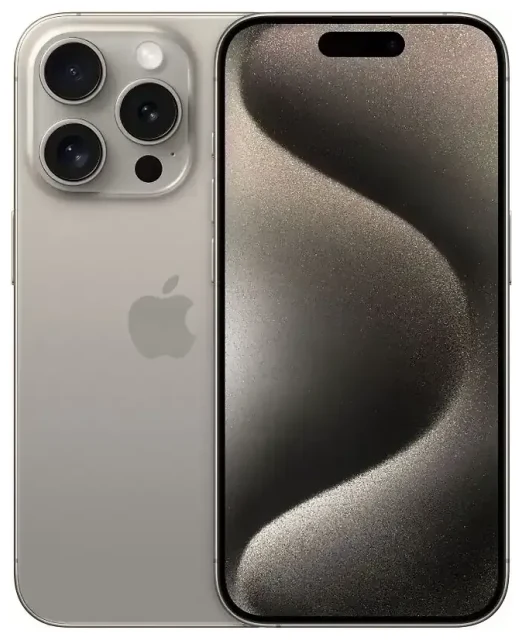
Does the Apple iPhone 15 Pro support eSIM?
Apple iPhone 15 Pro eSIM compatibility
Yes, the Apple iPhone 15 Pro supports eSIM on all models sold worldwide. Apple continued its shift toward embedded SIM technology across the entire iPhone 15 lineup, and the Pro variant offers full eSIM functionality regardless of where you purchase it.
The key difference lies in regional variants. Models sold in the United States are eSIM-only and ship without a physical nano-SIM tray. If you buy an Apple iPhone 15 Pro from a US retailer or carrier, you'll rely exclusively on eSIM technology for all cellular connectivity.
Dual SIM capability on the Apple iPhone 15 Pro
International models—purchased outside the US—retain the nano-SIM slot alongside eSIM support, giving you flexible dual-SIM options. You can run one physical SIM and one eSIM simultaneously, or configure dual eSIM if you prefer to skip the physical card entirely. US models support dual eSIM but cannot accept a physical SIM card at all.
The Apple iPhone 15 Pro can store up to eight eSIM profiles and have two active lines at once, whether that's eSIM+eSIM (US models) or nano-SIM+eSIM (international models). This flexibility makes it straightforward to separate work and personal numbers or add a local data plan when you travel.
How to set up an eSIM on the Apple iPhone 15 Pro
Set up an eSIM in Settings
Setting up an eSIM on your Apple iPhone 15 Pro typically takes about sixty seconds once you have a QR code or activation details from your carrier or eSIM provider. The process is identical whether you're activating your primary line or adding a second eSIM profile for travel.
- Open Settings and tap Cellular (or Mobile Data in some regions).
- Tap Add eSIM or Add Cellular Plan.
- Choose Use QR Code and point your camera at the QR code provided by your carrier or eSIM vendor. Alternatively, select Enter Details Manually if you received an SM-DP+ address and activation code.
- Wait while the eSIM profile downloads and installs—this usually completes within thirty to sixty seconds if you have an internet connection via Wi-Fi or your existing SIM.
- Label the new line with a clear name like "Travel Data" or "Work" so you can easily identify which line to use for calls, messages, and data.
- Choose your default line for cellular data in Settings > Cellular > Cellular Data, and configure which line handles iMessage, FaceTime, and voice calls under Default Line.
Activation and carrier transfer
Some US carriers offer direct eSIM transfer from your old iPhone during the setup wizard, which eliminates the need for a QR code entirely. If you're switching from a physical SIM on another device, contact your carrier to request an eSIM QR code or use their app to convert your existing plan to eSIM format before following the steps above.
Using a travel eSIM on the Apple iPhone 15 Pro
A travel eSIM is the simplest way to stay connected abroad without paying international roaming fees or hunting for a local SIM card at the airport. Because the Apple iPhone 15 Pro supports multiple eSIM profiles, you can install a data-only travel eSIM before your trip and switch it on the moment you land.
Purchase your travel eSIM plan online, receive the QR code by email, and scan it using the steps above—ideally while you're still at home and connected to Wi-Fi. The eSIM will sit dormant until you enable it in your Cellular settings and turn on data roaming for that line. Your home number remains available for calls and two-factor authentication texts, while the travel eSIM handles all data traffic.
When you're ready to explore coverage options and regional data packages, browse eSIM plans that match your destination and data needs. Many travelers install the travel eSIM a day or two before departure to avoid any last-minute connectivity issues at the airport.
Tips & troubleshooting
Enable data roaming for your eSIM line
A common stumbling block: your Apple iPhone 15 Pro won't use the travel eSIM for data unless you turn on Data Roaming for that specific line. Go to Settings > Cellular, tap the travel eSIM line, and toggle Data Roaming on. This setting is per-line, so your primary SIM can stay off roaming while your travel eSIM handles data abroad.
Set the travel eSIM as your default data line under Settings > Cellular > Cellular Data, and leave your home SIM active for incoming calls and SMS. This dual-line configuration ensures you never miss a verification code and keeps your regular number reachable without incurring roaming charges.
Fix an eSIM that won't activate
If the QR code won't scan, make sure your camera lens is clean and the lighting is adequate. You can also tap Enter Details Manually and type the SM-DP+ address and activation code provided by your carrier or eSIM vendor. Confirm you have an active internet connection—either Wi-Fi or cellular data on your existing SIM—because the Apple iPhone 15 Pro must download the eSIM profile from the network.
If the eSIM profile installs but shows "No Service," restart your device and check that the correct line is selected for cellular data. Carrier settings updates sometimes resolve activation problems; go to Settings > General > About and wait a moment to see if an update prompt appears. For persistent issues, eSIM setup help can guide you through carrier-specific quirks, or you can verify another device's capabilities if you're planning a future upgrade by visiting check another device's eSIM compatibility.
eSIM vs physical SIM on the Apple iPhone 15 Pro
International buyers often wonder whether to use the nano-SIM slot or go fully eSIM. Physical SIM cards offer tangible backup—you can pop the card into another phone if your device fails—but eSIM provides faster setup and the convenience of managing everything in software. US owners don't have a choice, since the iPhone 15 Pro sold stateside has no physical tray at all. Either way, call quality, data speeds, and network performance remain identical; the difference is purely in how the SIM credential is stored.









