 WhatsApp +44 7367 063273
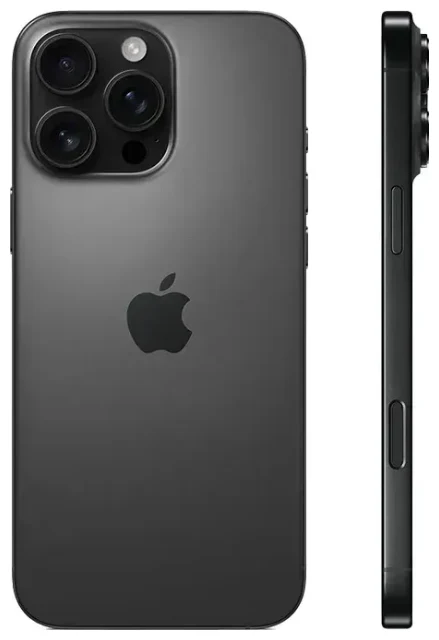
Does the Apple iPhone 16 Pro Max support eSIM?
Yes, the Apple iPhone 16 Pro Max supports eSIM. Every variant of this device—regardless of where you purchase it—includes eSIM functionality built in.
Apple iPhone 16 Pro Max eSIM compatibility by region
Models sold in the United States are eSIM-only and do not include a physical nano-SIM tray. You can only use eSIM profiles on these devices. Models sold outside the U.S.—including Europe, Asia, the Middle East, and other regions—ship with both eSIM support and a physical nano-SIM slot, giving you the flexibility to use either or both.
Dual SIM capability on the Apple iPhone 16 Pro Max
The Apple iPhone 16 Pro Max supports dual SIM in two configurations. On international models, you can use one physical nano-SIM and one eSIM simultaneously, or two eSIMs at the same time if you prefer not to insert a physical card. U.S. models support dual eSIM only—you can have two active eSIM lines running concurrently. This setup lets you keep a home line for calls and texts while adding a local or travel data plan on a second eSIM.
The device can store multiple eSIM profiles (more on that below), but only two lines can be active at any given moment. You switch between stored profiles in Settings whenever you need to change carriers or plans.
How to set up an eSIM on the Apple iPhone 16 Pro Max
Setting up an eSIM on your Apple iPhone 16 Pro Max takes about a minute once you have your QR code or activation details from your carrier or eSIM provider. The process is straightforward and happens entirely in the Settings app.
Step-by-step eSIM activation
- Open Settings and tap Cellular (or Mobile Data in some regions).
- Tap Add eSIM or Add Cellular Plan.
- If your carrier supports eSIM Quick Transfer and you're upgrading from another iPhone, you may see an option to transfer your number directly—follow the prompts if available. Otherwise, choose Use QR Code.
- Position your Apple iPhone 16 Pro Max camera over the QR code provided by your carrier or eSIM service. The code scans automatically.
- Tap Add Cellular Plan when prompted, then wait 30–60 seconds while the profile downloads and activates.
- Label your new line with a clear name—such as "Travel Data" or "Work"—so you can identify it easily when managing calls, messages, and data.
- Choose which line you want to use as your default for cellular data, and confirm your settings for iMessage and FaceTime if you're running multiple lines.
Your eSIM is now active. You'll see the carrier name and signal strength in the status bar. If you're activating a travel eSIM before a trip, the line may show "No Service" until you land in the destination country and the device connects to the local network.
Scanning issues and manual entry
If the QR code won't scan—perhaps because of glare, print quality, or a cracked screen protector—tap Enter Details Manually at the bottom of the scan screen. Your eSIM provider will give you an SM-DP+ address and activation code to type in by hand. This method works exactly the same way; it just takes an extra moment to input the strings.
Using a travel eSIM on the Apple iPhone 16 Pro Max
A travel eSIM is the simplest way to get mobile data when you're abroad, without paying international roaming fees to your home carrier. You buy a data plan for your destination country or region, install the eSIM profile on your Apple iPhone 16 Pro Max before you leave, and the moment you land the device connects to a local network. No need to hunt for a SIM card shop in the airport or deal with language barriers at a convenience store.
Install your travel eSIM before departure
Most eSIM providers email you a QR code within seconds of purchase. Install the profile while you're still at home and connected to Wi-Fi—follow the steps in the section above. Label the new line "Travel" or the country name so you remember which one to use. Leave your home SIM or eSIM active; you'll control which line handles data once you arrive.
When your plane touches down, open Settings > Cellular, tap your travel eSIM line, and toggle Turn On This Line if it's off. Then go back one screen and set that eSIM as your default line for Cellular Data. Your Apple iPhone 16 Pro Max will now route all internet traffic over the local travel plan, keeping your home line available for incoming calls and two-factor authentication texts. You can browse eSIM plans that cover single countries, regions like Europe or Asia, or even global bundles if you're visiting multiple destinations on one trip.
Tips & troubleshooting
Turn on data roaming for your eSIM line
This catches many first-time eSIM users by surprise: even though your travel eSIM is a local plan in the country you're visiting, iOS still treats it as "roaming" because the line is not your device's original carrier. Go to Settings > Cellular, tap your travel eSIM, and toggle Data Roaming to on. Without this switch enabled, you'll see signal bars but no internet connection.
Keep your home line active for calls and texts
You don't need to delete or disable your home SIM or eSIM while traveling. Leave it turned on so you can receive calls and SMS messages—including those critical two-factor codes from your bank. Just make sure your travel eSIM is set as the default for cellular data, so you're not accidentally using your home carrier's expensive roaming data. You control which line handles voice calls in Settings > Cellular > Default Voice Line.
QR code won't scan or eSIM won't activate
If scanning fails repeatedly, restart your Apple iPhone 16 Pro Max and try again—this clears temporary glitches. Remove any thick or textured screen protector that might interfere with the camera. If you're scanning from another phone's screen, increase the brightness to maximum. When all else fails, use the manual entry option with the SM-DP+ address and activation code. If the eSIM still won't activate after manual entry, confirm with your provider that the QR code or activation details haven't expired and that the plan is eligible for your device. You can also check whether your device recognizes the eSIM hardware by going to Settings > General > About and scrolling down to see if "Available SIM" or "Digital SIM" appears—that confirms eSIM capability is working at the system level.
For persistent problems or questions about a specific carrier's process, eSIM setup help is available. If you're researching compatibility for a different phone or tablet, you can check another device's eSIM compatibility to compare options.









