 WhatsApp +44 7367 063273
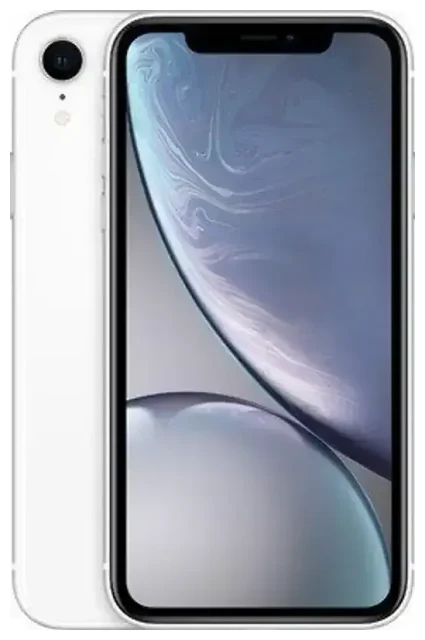
Does the Apple iPhone Xr support eSIM?
Yes, the Apple iPhone Xr supports eSIM. Apple introduced eSIM functionality with the iPhone Xr when it launched, making it one of the first iPhones to offer this digital SIM technology alongside the iPhone Xs and Xs Max.
Apple iPhone Xr eSIM compatibility
All Apple iPhone Xr models sold worldwide support eSIM, regardless of region or carrier. The device uses dual SIM capability: one physical nano-SIM slot plus one eSIM. You can have one active physical SIM and one active eSIM running simultaneously, which means you can keep your home number while adding a second line for work, travel, or local data.
The Apple iPhone Xr does not support dual eSIM mode—you need at least one physical SIM card in the tray. Later iPhone models introduced dual eSIM capability, but the Xr requires the physical slot to be occupied if you want to use the eSIM alongside it.
eSIM vs physical SIM on the iPhone Xr
Your iPhone Xr can use either the physical nano-SIM alone, or both the physical SIM and eSIM together. You cannot use two eSIMs at once on this model. If you activate an eSIM, your physical SIM remains active, and you can choose which line to use for calls, messages, and cellular data in Settings.
How to set up an eSIM on the Apple iPhone Xr
Setting up an eSIM on your Apple iPhone Xr takes about a minute once you have your QR code or activation details from your carrier or eSIM provider. Make sure your iPhone is connected to Wi-Fi and running a recent version of iOS before you begin.
Install your eSIM using a QR code
- Open Settings and tap Cellular (or Mobile Data in some regions).
- Tap Add Cellular Plan.
- Use your camera to scan the QR code provided by your carrier or eSIM provider. Hold your iPhone steady until the QR code is recognized.
- If prompted, enter the confirmation code supplied with your QR code.
- Tap Add Cellular Plan when the plan details appear on screen.
- Label your new line—choose a name like "Travel," "Work," or "Personal" so you can identify which SIM to use for calls and data.
- Select which line you want as your default for cellular data and which line for iMessage and FaceTime.
Activate the eSIM and choose your settings
After installation, your Apple iPhone Xr will show both lines in Settings under Cellular. You can switch your default data line anytime, turn individual lines on or off, and configure each line for calls, messages, and data separately. The entire activation process typically completes within 60 seconds once the QR code is scanned.
Some carriers and eSIM providers also support manual entry or app-based activation. If your provider offers an app, you can install the eSIM directly through the app instead of scanning a QR code.
Using a travel eSIM on the Apple iPhone Xr
A travel eSIM is the easiest way to get mobile data abroad without paying roaming charges from your home carrier. Because the Apple iPhone Xr supports eSIM, you can install a data-only travel eSIM before your trip and activate it when you land.
How travel eSIMs work on the iPhone Xr
You keep your physical SIM active for calls and texts from your home number, and you use the eSIM exclusively for data. This setup means you can receive two-factor authentication codes and important calls on your home line while browsing, navigating, and using apps on the local travel eSIM—no expensive roaming fees.
Install your travel eSIM while you're still at home and connected to Wi-Fi. Once you arrive at your destination, turn on the travel eSIM line in Settings, select it as your default data line, and enable data roaming for that line only. Your iPhone Xr will connect to a local network using the eSIM, and you can start using data immediately.
You can browse eSIM plans for hundreds of destinations and install your travel eSIM in seconds. No need to hunt for a SIM card at the airport or deal with tiny SIM trays in a taxi.
Tips & troubleshooting
Most eSIM installations on the Apple iPhone Xr work without issues, but a few settings and common problems are worth knowing.
Turn on data roaming for your eSIM line
Even though you're using a local or regional eSIM, you must enable data roaming for that line in Settings. Go to Settings > Cellular, tap the eSIM line, then tap Data Roaming and turn it on. This is not the same as expensive roaming on your home carrier—your eSIM provider's plan covers the data, and roaming simply allows the eSIM to connect to the local network.
Keep your home SIM active for calls and two-factor codes
Leave your physical SIM turned on so you can receive calls, SMS, and two-factor authentication codes from banks and apps. Set your home SIM as the default line for voice and SMS, and set the travel eSIM as the default for cellular data. That way, your phone routes data through the eSIM and calls through your home number.
Fix an eSIM that won't activate
If the QR code won't scan, check that your camera lens is clean and that you have good lighting. You can also try entering the activation details manually: tap Enter Details Manually on the Add Cellular Plan screen and type in the SM-DP+ address and activation code provided by your eSIM provider.
If the eSIM installs but won't connect, restart your iPhone Xr and confirm that the eSIM line is turned on and set as the default for cellular data. Make sure data roaming is enabled for the eSIM line, and check that you have coverage in your location. If you're still stuck, you can get eSIM setup help or contact your eSIM provider directly.
To check another device's eSIM compatibility, visit the compatibility page and search for the specific model you want to verify.









