 WhatsApp +44 7367 063273
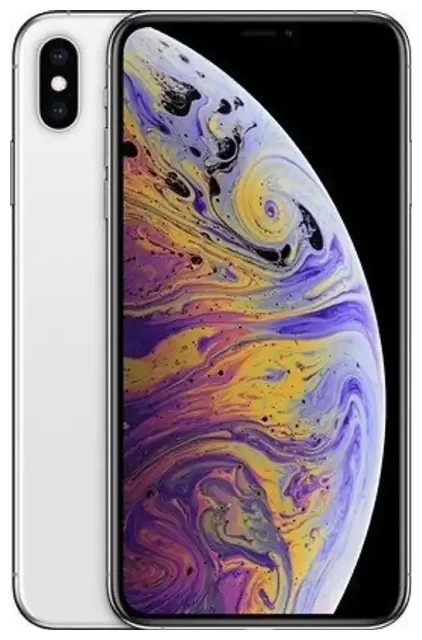
Does the Apple iPhone Xs Max support eSIM?
Apple iPhone Xs Max eSIM compatibility
Yes, the Apple iPhone Xs Max supports eSIM. Apple introduced eSIM capability with the iPhone Xs Max when it launched in September 2018, and all models worldwide—regardless of region or carrier—include eSIM functionality. This means you can use an eSIM on your Apple iPhone Xs Max whether you purchased it in the US, Europe, Asia, or anywhere else.
Dual SIM: eSIM plus physical SIM
The Apple iPhone Xs Max offers dual SIM through a combination of one physical nano-SIM slot and one eSIM. You can run two phone numbers simultaneously: one on the physical SIM card and one on an eSIM profile stored digitally in the device. Note that mainland China models (A2104) have dual physical nano-SIM slots instead of the eSIM option, but all other variants support eSIM.
You can store multiple eSIM profiles on your Apple iPhone Xs Max, though only one eSIM can be active at a time alongside the physical SIM. This makes it practical to keep a home carrier eSIM and add a travel eSIM when you need it, switching between profiles in Settings.
How to set up an eSIM on the Apple iPhone Xs Max
Set up an eSIM in Settings
Installing an eSIM on your Apple iPhone Xs Max takes about 60 seconds. Your carrier or eSIM provider will send you a QR code—either by email or visible in their app—and you scan it to download the profile to your device.
- Make sure your Apple iPhone Xs Max is connected to Wi-Fi and running the latest iOS version.
- Open Settings and tap Cellular (or Mobile Data in some regions).
- Tap Add Cellular Plan.
- Use the camera to scan the QR code provided by your carrier or eSIM provider. If you can't scan the code, tap Enter Details Manually and input the activation code.
- Tap Add Cellular Plan when prompted to confirm the installation.
- Label your lines—for example, "Personal" for your main number and "Travel" for the eSIM. This helps you choose which line to use for calls, messages, and data.
- Select which line you want as your default for cellular data. You can change this anytime in Settings.
Managing dual SIM lines
After setup, both your physical SIM and eSIM are visible in Settings under Cellular. You'll see each line listed with its label, and you can toggle each one on or off, choose which handles data, and assign one line for iMessage and FaceTime. If you're using the Apple iPhone Xs Max abroad, you can keep your home SIM active for calls and texts while routing data through a local travel eSIM to avoid roaming charges.
Using a travel eSIM on the Apple iPhone Xs Max
Get data abroad without roaming fees
A travel eSIM is the simplest way to stay connected when you're outside your home country. Instead of paying international roaming fees or hunting for a local SIM card at the airport, you install an eSIM plan on your Apple iPhone Xs Max before you fly. The eSIM activates when you land, giving you immediate access to mobile data for maps, messaging, and browsing.
Travel eSIMs work in dozens of countries and often cover entire regions—Europe, Asia, or Latin America—with a single plan. You can browse eSIM plans by destination, compare data allowances, and install the QR code in minutes. Because the Apple iPhone Xs Max supports dual SIM, your home number stays reachable for calls and two-factor authentication texts while the eSIM handles all your data.
Install before you travel
Download your travel eSIM while you still have Wi-Fi at home or at the airport. Once installed, the profile sits dormant on your Apple iPhone Xs Max until you enable it and turn on data roaming for that line. When you arrive, go to Settings > Cellular, select the travel eSIM line, toggle Turn On This Line, and switch on Data Roaming. Your device will connect to a local network, and you're online.
Tips and troubleshooting
Turn on data roaming for the eSIM line
Many people forget this step: your eSIM won't work abroad unless you enable Data Roaming for that specific line. Go to Settings > Cellular, tap the eSIM line, and toggle Data Roaming on. Don't worry—roaming charges only apply to your home carrier's physical SIM. The eSIM plan you purchased covers the data, so roaming is safe to enable for that line.
Keep your home SIM active for calls and texts
You can leave your home carrier's physical SIM turned on while using a travel eSIM for data. Set the eSIM as your default line for Cellular Data in Settings, but keep the physical SIM enabled so you can receive calls, SMS, and two-factor authentication codes. This setup works well for the Apple iPhone Xs Max dual SIM capability and keeps you reachable without extra cost.
Fix an eSIM that won't activate
If your QR code won't scan, check that the image is clear and your camera lens is clean. If scanning still fails, tap Enter Details Manually and type the activation code your provider sent. If the eSIM installs but won't connect, restart your Apple iPhone Xs Max, confirm the line is turned on in Settings, and verify that data roaming is enabled for the eSIM. You can also remove and reinstall the profile: go to Settings > Cellular, tap the eSIM, then Remove Cellular Plan, and scan the QR code again.
If you're still stuck, eSIM setup help can walk you through carrier-specific issues or device settings. Make sure your Apple iPhone Xs Max isn't carrier-locked—locked devices may reject eSIM profiles from other providers. You can check lock status by contacting your original carrier or looking in Settings > General > About under Carrier Lock.
Check compatibility for other devices
If you're upgrading or curious about another phone or tablet, you can check another device's eSIM compatibility to confirm support before you buy a plan. The Apple iPhone Xs Max eSIM feature set the standard for dual SIM on iPhones, and most models since—including the iPhone 11, iPhone 16, and iPhone 17 series—follow the same activation steps, so the process remains familiar as you upgrade.









